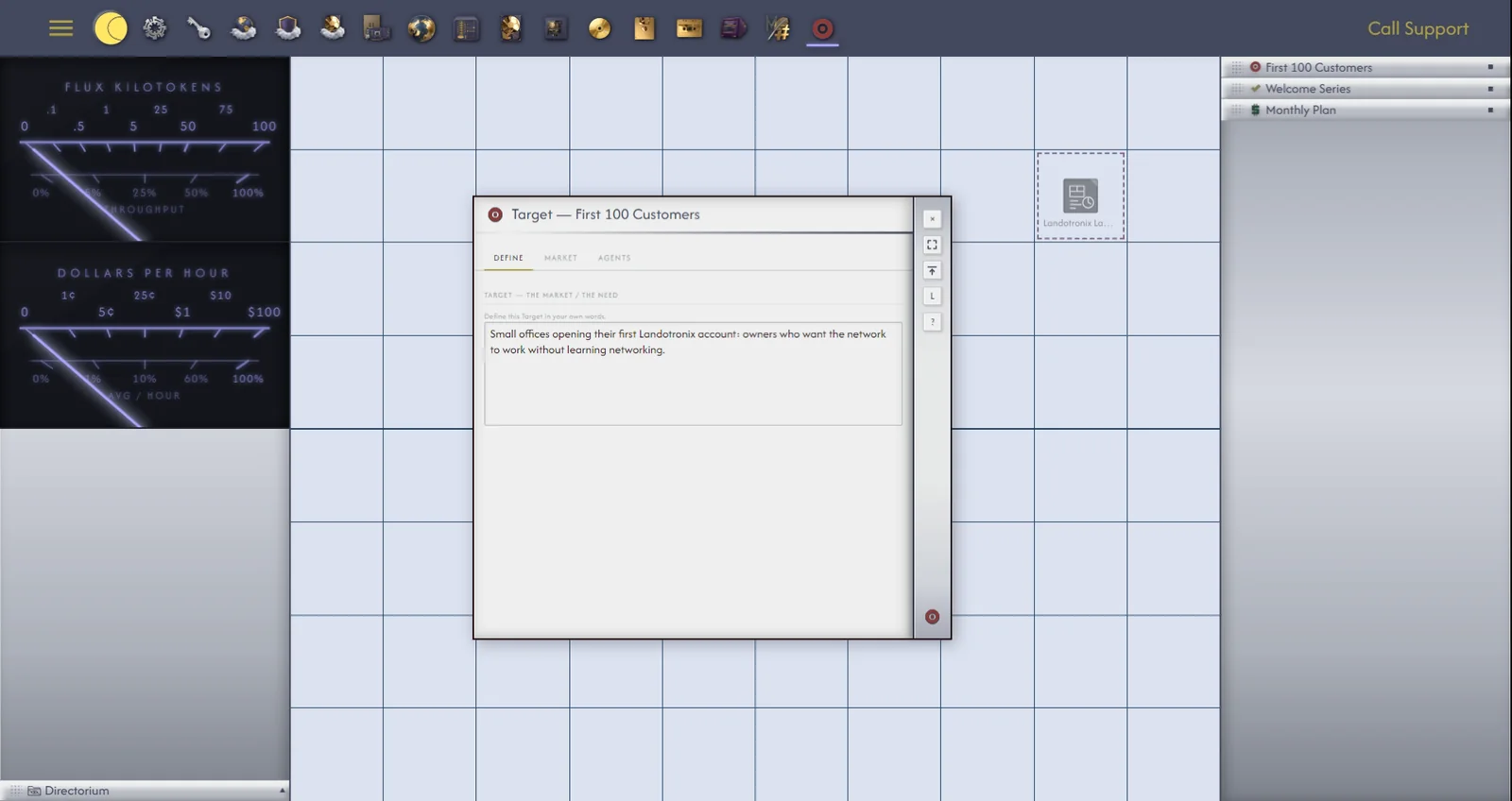
As your Gridtop grows, some objects belong together: the agent that answers your customers' email, the Tasks it carries out, the Tools it uses, the folder where it keeps its drafts. A Workflow gathers such a set into one object, with a grid of its own inside. A Blueprint does the same for planning: it lays out a venture, its target, its solution and its business model, as objects you can connect and hand to agents.
A Workflow is a container. On the main grid it is a single icon; double-click it, and the grid shows what is inside: the agents, Tasks, Skills, Tools and folders of one piece of work, each in a cell, joined by their connections as on the main grid. While you are inside, the Workflow's descriptor panel shows a small map of its contents.
Workflows keep the main grid clear and each line of work in one place. A Gridtop for Landotronix might have one Workflow for customer email, one for the website and one for the weekly newsletter.
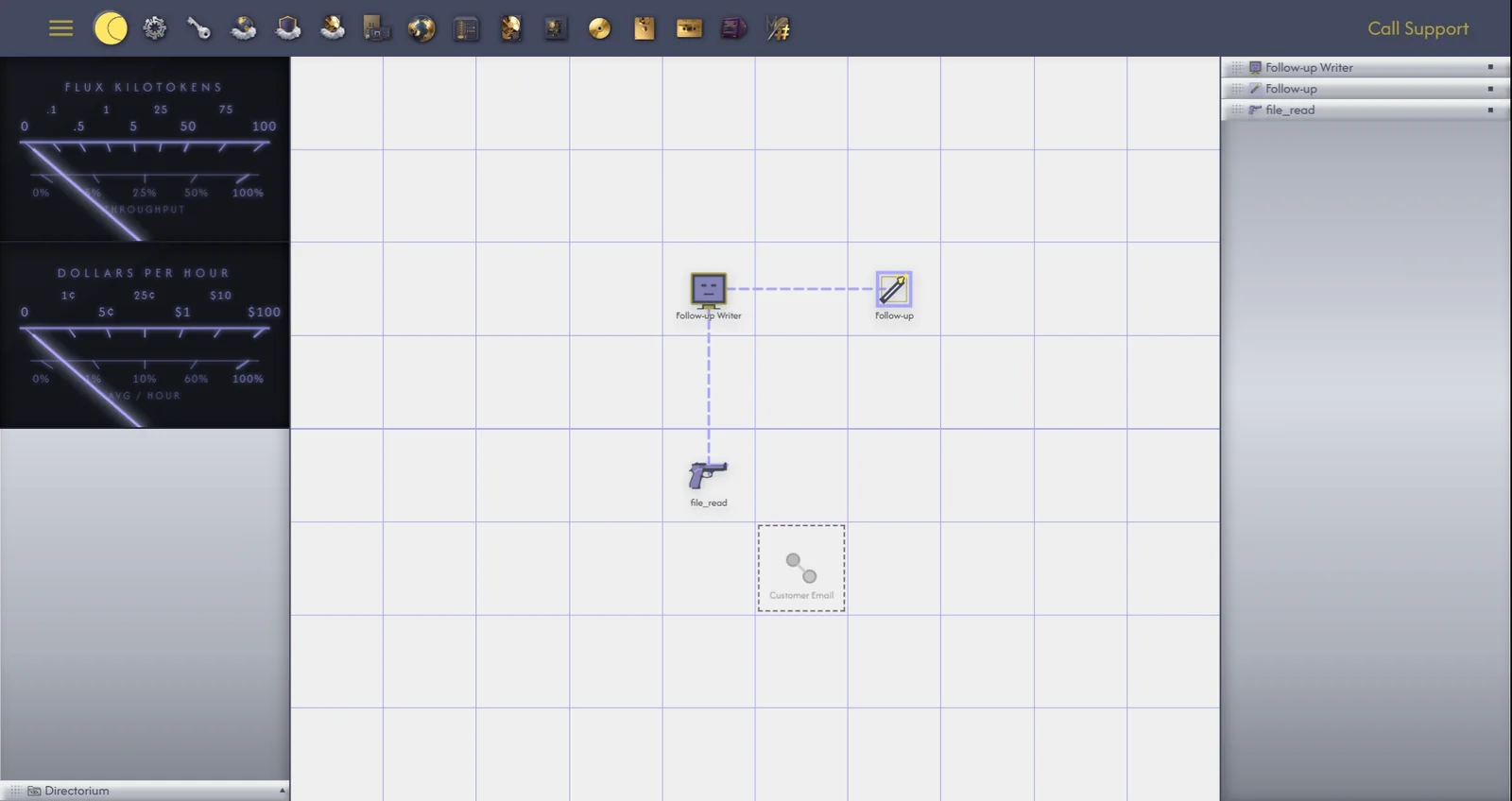
To create a Workflow, right-click an empty cell and choose Create New... ▸ Workflow, and name it in its descriptor panel. To put objects into it, drag each onto the Workflow's icon (8.2), or, from inside another Workflow, right-click an object and choose Move to... ▸ Other Workflow.... Inside, you create, arrange, connect and tune objects as on the main grid.
To return to the main grid, double-click the Workflow's own icon, which stays in view while you are inside.
Right-click an object inside a Workflow for two ways out. Remove From Workflow places it back on the main grid; nothing is deleted. Move to... ▸ Gridtop does the same, and Move to... ▸ Other Workflow... moves it into another Workflow; with no other Workflows, the list reads (none).
A Blueprint is a planning board for a venture: a new product, a new service, a new website. Inside, you lay out three kinds of object found nowhere else:
Blueprints are kept in A:/Agentic Matrix/Blueprints.