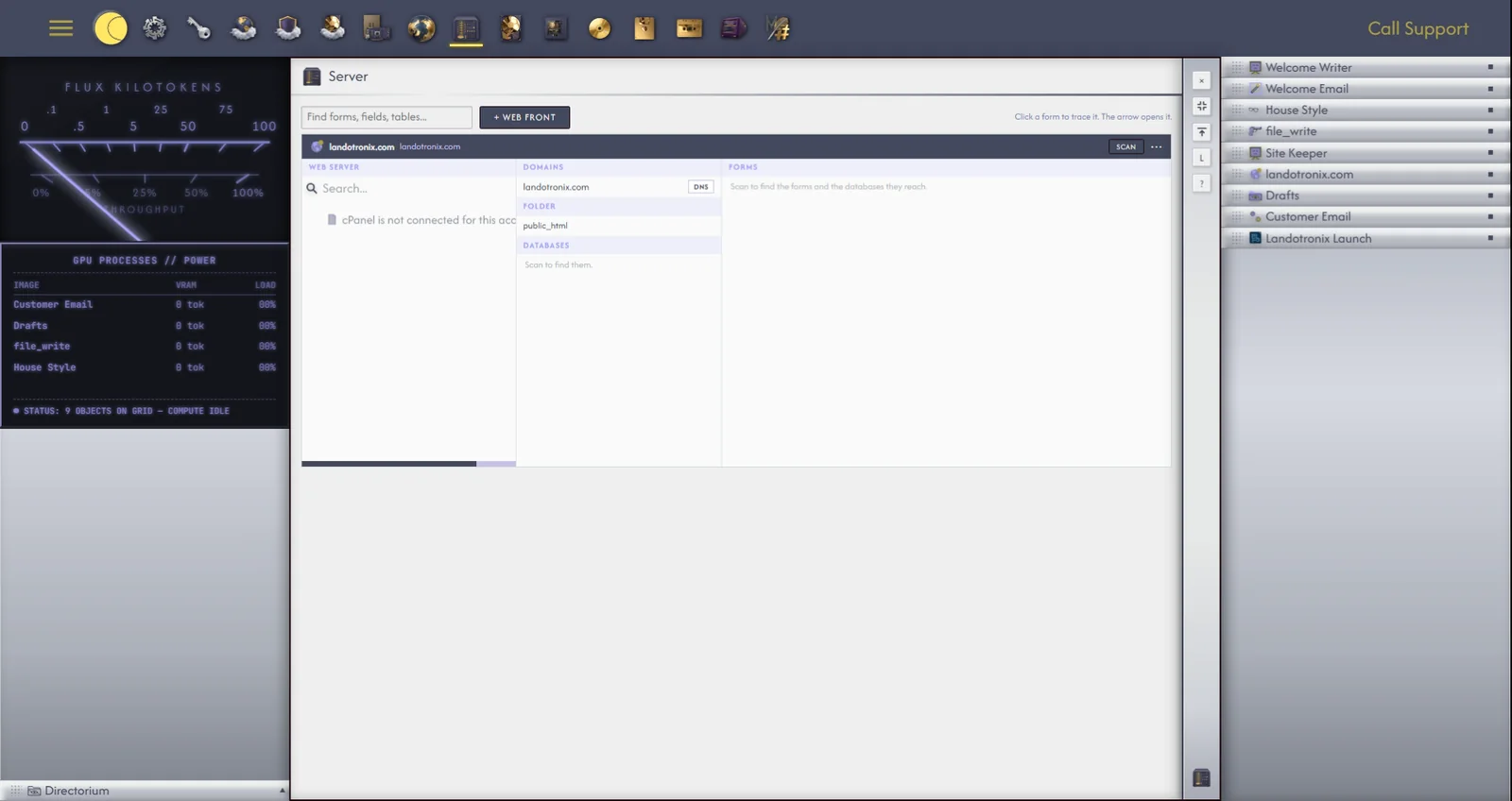
A website is more than its pages. Behind a contact form or a sign-up page there is a program that receives what visitors type, and a database that keeps it. The Server app shows all of this for each of your websites, and traces each form to the files and tables behind it, so that you can see how a site fits together before you, or an agent, change it.
Server, in the app drawer, shows each Web Front's website: its folder, domains, databases and forms, one row to a site. + Web Front adds a site to the list, and Configure Web Front on a row opens its window (26.2). Find forms, fields, tables..., at the top, searches across every site.
A site's forms and databases are found by a Scan. Click Scan on its row; it reads Scanning... while it looks through the site's files for its forms, the programs that receive them, and the databases they reach, then lists what it found. Scan only reads; it changes nothing on your website.
Open a database from a site's row, or from a form, and its window opens, Server — and the database's name: A database behind a Web Front: its tables and rows, SQL, the forms that reach it, and the agents that can read it. Its tabs:
Click a form to trace it. The arrow opens it. Clicking a form gives it a colour, and lights up everything connected to it in that colour: the form, the files that make and receive it, the folders that hold them, and the database and tables it writes to. Trace two forms and each takes its own colour, so you can see where they share a table.