Your Gridtop has a drive of its own, where every agent, Task, recording and uploaded file is kept. This chapter explains the drive, the two ways of looking at it, and how to search it, upload to it, and pack and unpack archives on it.
Online, your drive is always A:/. Its size is your hosting plan's storage allowance (5 GB unless your plan says otherwise). In Autocomputing '26, the same drive can also appear in Windows under a letter of your choosing (39.2).
The panel at the left of the screen, headed Directorium, shows your drive as a tree (3.4). Click a folder's arrow to open it; right-click anything for what can be done with it; double-click a file to open it; drag a file onto the grid to place a shortcut to it. Right-click a folder for Upload Here... and New Folder.... Double-click A:/ itself, or any folder, and Index opens there (22.3). Beneath your drive, Web Server ▸ Web Fronts shows your websites' own folders, read live from your hosting.
Index, in the app drawer, shows your drive in a detailed list, like the Details view of Windows File Explorer, and behaves like it. With Index open, the Directorium steers it: click a folder in the panel, and Index shows its contents, with their dates, sizes and types and, where it applies, the agent and Web Front each file belongs to. Click a column heading to sort by it. Double-click a folder in the panel to open Index there, or bring an open Index forward at that folder.
Getting about. Back and Forward move through the folders you have visited (also ALT+LEFT and ALT+RIGHT, your mouse's own back and forward buttons, and BACKSPACE for Back); ALT+UP goes up a folder. The address bar shows the path as crumbs. Click its empty part or its last crumb (or press CTRL+L, ALT+D or F4), and it becomes a text box holding the whole path, selected, to copy, paste or type over; ENTER goes there, ESC puts the crumbs back. A website's folders are addressed as A:/Web Server/ domain / folder. Right-click the bar for Copy address.
Selecting. Index selects as File Explorer does: a click selects one row; CTRL+click (or a middle click) adds or takes away one; SHIFT+click takes the run from the last row you clicked; dragging from empty space, or from a row away from its name, draws a box; CTRL+A selects everything; SHIFT and CTRL with the arrow keys extend the selection. One row reads as picked in purple; two or more read as a set, in gold, as on the grid. ESC, or Clear selection, lets them go.
To act on several at once, select them, then drag any of them onto a folder to move them all; press Delete, or right-click and choose Delete with the count, to send them all to the Receptaculum after one question (9.1); or right-click and choose Send with the count to Gridtop, to give each its icon on the grid. Website folders are selected one at a time.
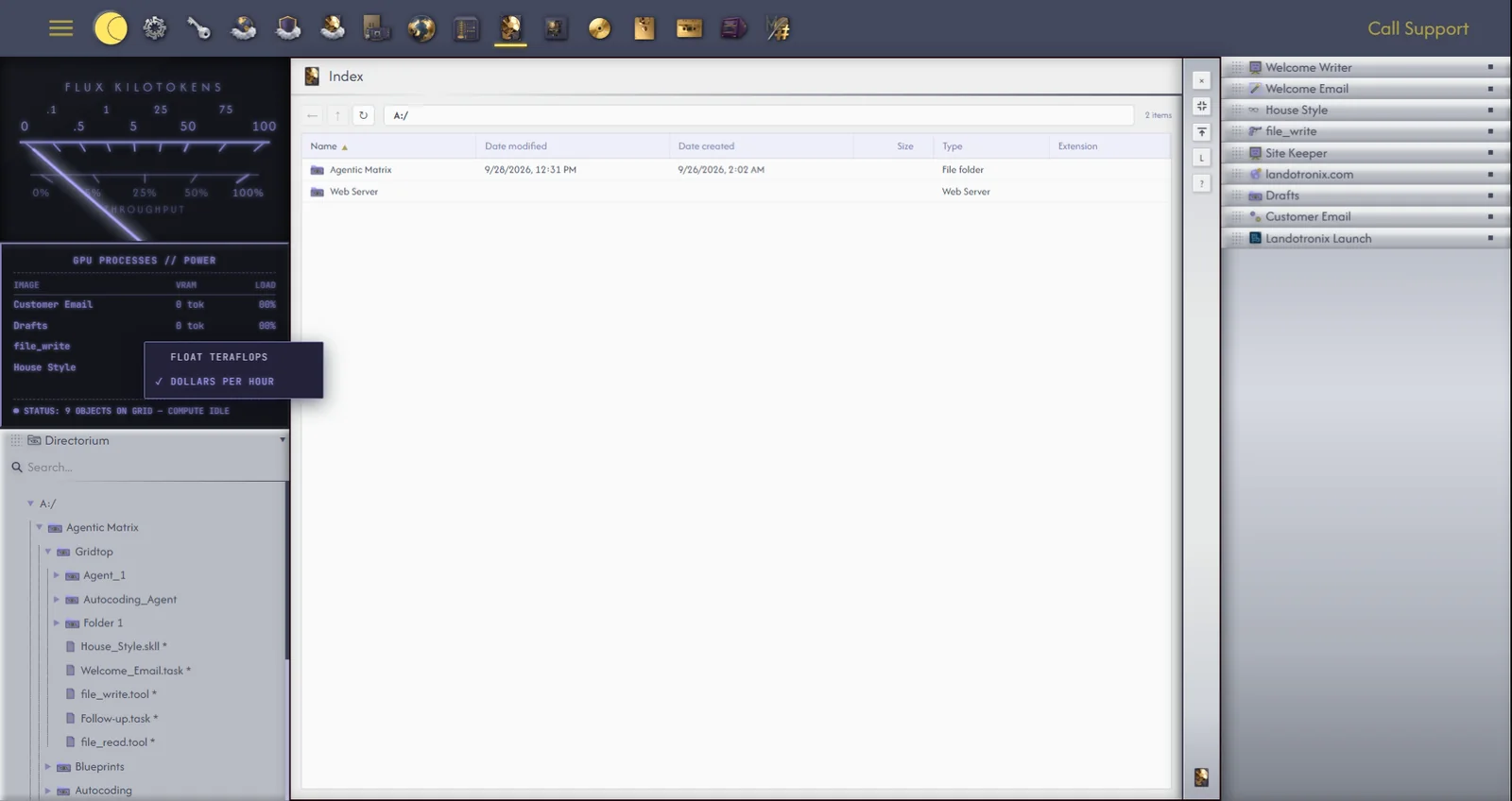
Type in the Search... box at the top of the File Directory, and the tree narrows as you type, opening folders to show and highlight every match. Any part of a name will do; to find files of one kind, type their ending: .md finds every Markdown file.
To upload is to bring a file from your computer onto your drive. Each file may be up to 500 MB; a larger one is refused with File exceeds the 500 MB limit. Large files are sent in pieces, and a silver upload dialog shows each file's progress. When your drive is full, an upload is refused with Your drive is full: X GB of Y GB used.; deleting files, then destroying them in the Receptaculum (9.4), makes room. For safety, program files that could run on a server are refused as well.
To upload, right-click a folder in the Directorium or the drive picker (12.5) and choose Upload Here..., or drop files in from your computer, wherever they land:
What will take the drop is outlined as you hold the file over it. Gridtop confirms Attached to chat, or Uploaded to and the folder.
In Autocomputing '26, you can also copy files into your drive in File Explorer (chapter 39).
Gridtop packs and unpacks archives. Right-click a file or folder for Add to Archive, and an archive for Extract Here or Extract to Folder. Add to Archive offers the format (.zip, .tar.gz, .tar.bz2 or .tar), the compression level, optional encryption with a password (AES-256), and what to do If it already exists: keep both, replace, or stop. Click Compress; Gridtop reports Compressing… and then the result.
Gridtop's own folders, Agentic Matrix and those within it, including the Receptaculum, cannot be moved, renamed or deleted (8.4). Everything inside them can be opened and used like any other file.
