This chapter covers the ways things leave the grid (Remove, Delete, Undo and the Receptaculum) and the way back from each.
Because everything on the grid is a shortcut to a file (1.2), there are two different ways of making something go away, and Gridtop gives each its own word.
Remove takes the shortcut off the grid, and nothing more. The file stays where it is on your drive, and you can place it on the grid again whenever you like. Right-click an object and choose Remove; it goes at once, and Gridtop confirms Removed from the Gridtop. Inside a group the item reads Remove From Group, and inside a Workflow Remove From Workflow; each takes the object out of the group or Workflow and leaves the object itself alone.
Delete sends the file itself to the Receptaculum, and takes its shortcut off the grid as well. Because it moves a file, Gridtop asks first.
Delete appears on every object that has a file on your drive: agents, Tasks, Skills, Roles and Tools, and the files and folders you have placed on the grid. It does not appear on Web Fronts or on your website's own files; your website is never deleted from the grid. To delete several objects at once, select them (5.3), right-click, and choose Delete.
In the File Directory, right-click a file or folder and choose Delete. Gridtop asks Delete this file? (or folder): It goes to the Receptaculum; Restore brings it back.
Gridtop remembers the last 40 changes you make on the grid, for as long as your Gridtop stays open: placing, moving, copying, grouping, connecting, removing and deleting objects. Step back through them with Undo (CTRL+Z, or Undo on the grid's right-click menu), and forward again with Redo (CTRL+Y or CTRL+SHIFT+Z).
Undoing a Remove puts the shortcut back. Undoing a Delete puts the shortcut back and brings the file back from the Receptaculum to where it was; Redo deletes it again.
Undo reaches your files as well. Every change to your drive (a save, an upload, a move, a rename, a copy, a new folder, a delete) is kept in the drive's file history, whether you made it in the browser, in Autocomputing '26, or an agent made it. CTRL+Z steps back through grid changes and file changes together, newest first, and a change made in the Windows app can be undone in the browser, or the other way round. A file changed again since is left alone: It has changed since. Nothing was undone. The history keeps the last 100 changes, for 30 days; earlier copies of files over 25 MB are not kept, so a change to one of those cannot be undone.
Each time, a Latin readout confirms what happened:
| Readout | Meaning |
|---|---|
| Revoca Motum | The last change is taken back. |
| Itera Motum | The change is made again. |
| Nihil Revocandum | There is nothing left to undo. |
| Nihil Iterandum | There is nothing left to redo. |
The Receptaculum is where deleted files wait until you restore or destroy them. Its name is Latin for a receptacle. It is a folder on your drive, A:/Agentic Matrix/Receptaculum, at the foot of the Agentic Matrix folder in the File Directory, marked with a slate bin bearing a yellow recycling mark.
To open it, right-click the Receptaculum folder in the File Directory and choose Open Receptaculum, or open the folder in Index. The window explains itself: What was deleted from your drive. Restore puts an item back where it came from. Destroy deletes it for good. Each item is listed with its name, where it came from, when it was deleted and its size, beside Restore and Destroy. An empty Receptaculum reads Nothing here.
To restore a file, click Restore beside it, or, in the File Directory, right-click it inside the Receptaculum folder and choose Restore. Gridtop reports Restored to and the place it has gone back to, making the folder again if it no longer exists.
While a file is in the Receptaculum, it cannot be used by mistake. Try to open it, attach it, place it or give it to an agent, and Gridtop says In the Receptaculum. Restore it to use it. Nor can anything be dragged in; Gridtop answers Use Delete to put things in the Receptaculum., so that every file there arrives with a record of where it came from.
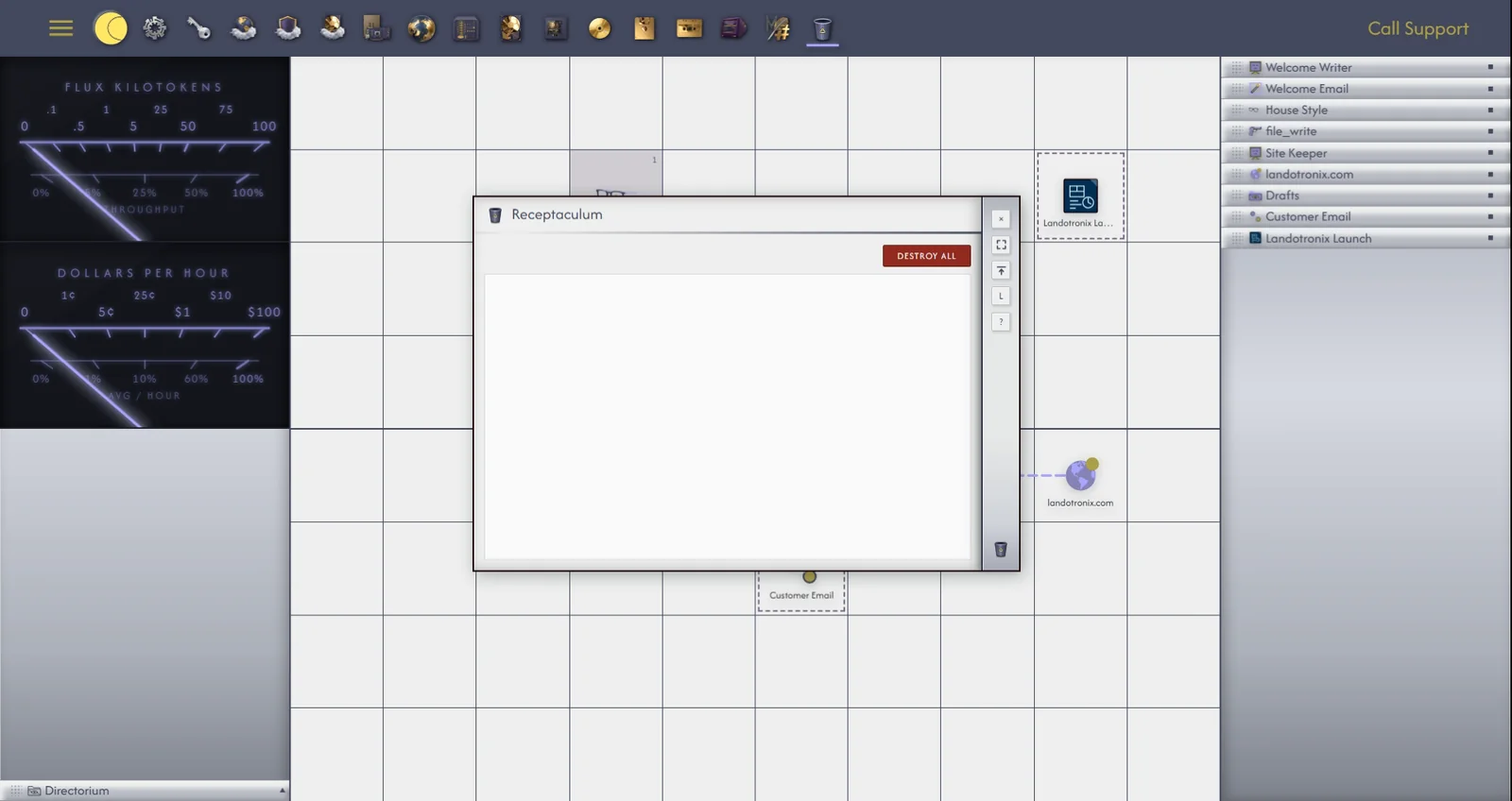
To destroy something in the Receptaculum is to delete it from your drive for good. Destroying is always your own act, done by hand and confirmed; no agent can do it, and nothing is destroyed automatically.
To destroy one item, click Destroy beside it in the Receptaculum window (or, in the File Directory, right-click it inside the Receptaculum folder and choose Destroy...). Gridtop asks Destroy name? and warns: It is deleted for good. This cannot be undone. Click OK; Gridtop reports Destroyed name.
To empty the Receptaculum, click Destroy All in its window (or right-click the Receptaculum folder and choose Destroy All...; in Index it sits beside the address bar). Gridtop asks, for example, Destroy 12 items?, and warns: Everything in the Receptaculum is deleted for good. This cannot be undone. Click OK; Gridtop reports Receptaculum emptied.
