The Editor is where you read and write the text on your Gridtop: notes, Markdown documents, your website's pages and code. One Editor serves every text and code file, each in its own tab. This chapter explains opening files, Markdown and code, the Editor's bar, and docking it in the left pane as the Code Editor. An agent's side of the same work is described with the Editor's tools in 16.4, and editing a website as a page in the Web Editor (chapter 27).
To open a file, double-click it in the File Directory or in Index: text and code open in the Editor; pictures, sound and video in the Media app. The Editor also opens from the app drawer: Every text and code file, in tabs. With nothing open, it shows Nothing loaded., an Open button, and a tree that starts at A:/ and lists each website's folder.
Each file is a tab; the window's title shows the one you are looking at, Editor — and its name. Click a tab to move to it, its × to close it. A new file never saved carries the tooltip Not saved yet. Closed and opened again, the Editor brings back your tabs and the file you were last working on. A Web Front's right-click Editor... opens the Editor with that site's folder as its tree (26.1).
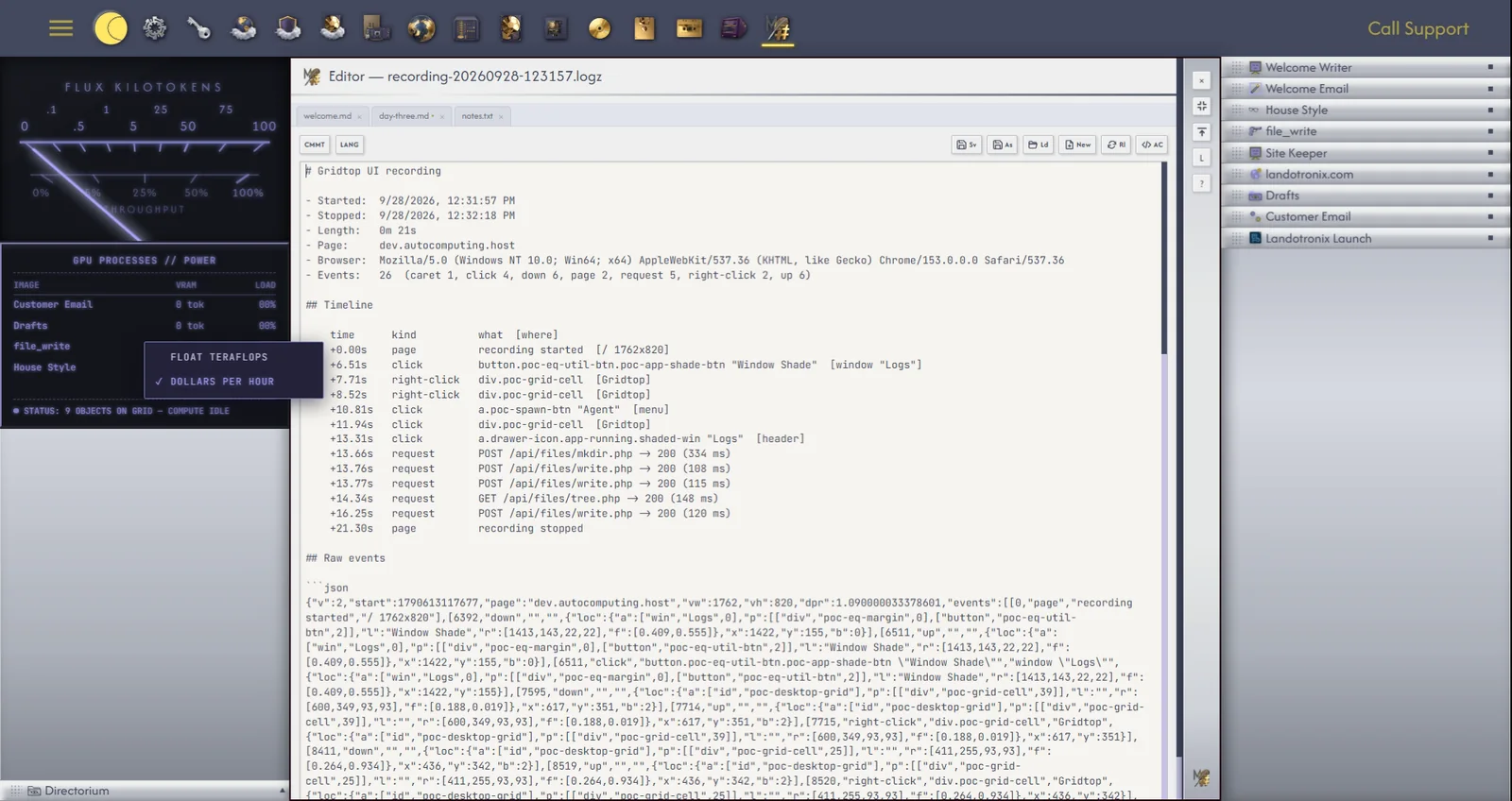
Markdown is a plain way of writing formatted text: a line beginning with # is a heading, words between asterisks are emphasised, a line beginning with a dash is a list item. It is how agents write their replies, and how Gridtop saves chats, prompts and Tasks.
Files ending .md open in Markdown mode, their formatting shown as you type. Right-click the formatting toolbar to switch between Markdown and Code. In Code mode the text is shown plain with its language's colouring, and two buttons join the toolbar: CMMT comments or uncomments the selected lines in the language's own way, and LANG chooses the language, guessed from the file's name when it opens.
At the foot of the editing area, the bar carries, left to right:
Below the editing area, Terminal ▸ folds a Terminal open and shut (chapter 31). Above it, when the open file belongs to a website, Deploy ▸ is where staged changes reach the live site (26.6).
D in the Editor's title bar docks it: the whole Editor (tabs, open file, bar) moves into a panel in the left pane, above the File Directory, named Code Editor. Nothing is rebuilt; your text, caret and undo stay as they are. ↗ in the panel's header returns it to its window, as does opening the Editor from the drawer.
While the Code Editor shares the left pane with the Directorium, ■ in each header steps it through four sizes (header only, a quarter, a half and three quarters of the pane), the other taking what is left; with the meters open, each takes a third. Their own collapse arrows are hidden while docked.
Gridtop keeps two kinds of work apart. Your Gridtop (its windows, tabs and what you have typed) is saved for you all the time (23.6). Your files change only when you save them: an agent's draft, or your own, is never written over a file behind your back. An agent's edits arrive in the tab, marked as unsaved, for you to save or not. (A website's staged file is the exception: an agent's edits to it are saved to the drive as they are made, so that its preview shows them, and the Web Editor can undo them, 27.6.)
A file with unsaved changes shows \* after its name in its tab and in the title; Save writes it. Closing a tab with unsaved changes asks first: Warning: Save first?, "name" has unsaved changes., with Save, Discard and Cancel.
Your open tabs, with any text you have typed and not saved to its file, are kept with your Gridtop (chapter 36). Close the browser mid-sentence, open your Gridtop tomorrow on another computer, and the tab is there with your unsaved words, still marked \* until you save them.
