This chapter explains what Gridtop is, how it relates to your files and your hosting, and what you will need to begin. If you would rather start working at once, read 1.1 and 1.4, then turn to the first lesson in chapter 4.
Gridtop is a gridform of workflow components, websites, files and folders: a single surface on which you control AI agents and agentic processes visually, with objects. It opens in your web browser. Each square of the grid holds one object: an agent, a file or folder, a website, a Task. The lines you draw between objects say how they work together, so that the grid as a whole describes the work your agents carry out.
You arrange the grid by hand, and you direct it by instructing the agents on it. Objects are dragged into place; apps open from the app drawer into windows that can be moved and resized; right-clicking any object opens its menu.
What sets Gridtop apart is who works on it. Alongside your files and websites, it holds agents. An agent is an assistant powered by an AI language model. You speak to it in its chatbox, in your own words, and it answers; but it can also act. Given permission, an agent can read and write the files on your drive, look into your website's folders and databases, prepare changes to your site for you to approve, and keep working on a schedule while you are away. You decide what each agent is for, which model it thinks with, what it may touch, and what it is to do next.
Each Gridtop belongs to one Autocomputing account, and represents that account. Your hosting, domains, website folders and drive all appear on it, and your agents work within them, and only within them: an agent on your Gridtop can reach what your account can reach, and nothing belonging to anyone else.
Your Gridtop also remembers itself. What you arrange on it, the windows you leave open and the conversations in progress are saved as you work, so that the next time you open it, from this computer or any other, it is as you left it (chapter 36).
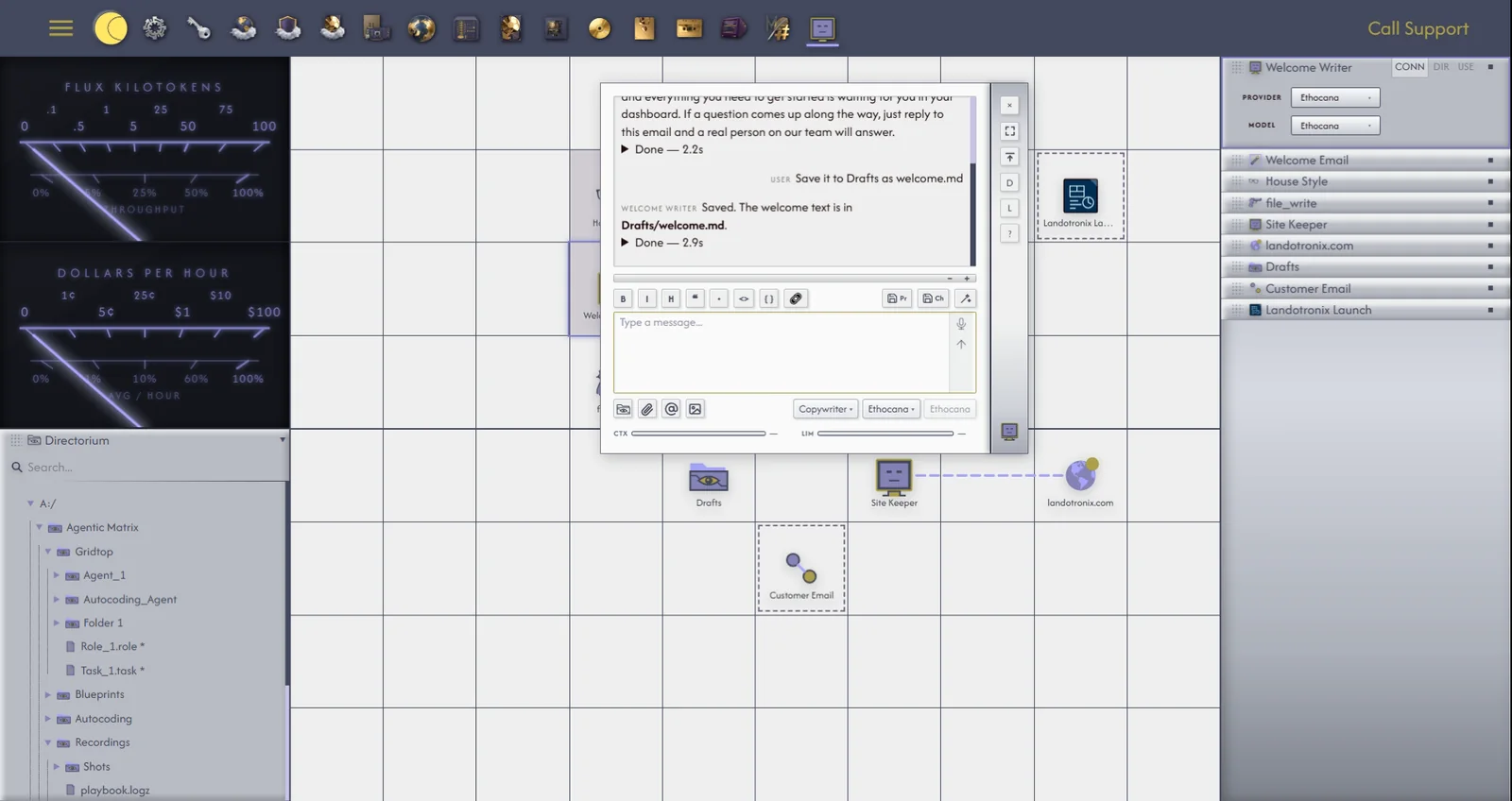
One idea runs through the whole of Gridtop: everything on the grid is a shortcut to a file.
Your Gridtop has its own drive, called A:/. Every agent, Task, Skill, Role and Tool you create is kept as a file on that drive, inside a folder named Agentic Matrix, and the icon on the grid points to that file. This is why you can close your browser, open Gridtop somewhere else and find your agents as they were; and why you can copy an agent's file, keep it safe, and bring the agent back later by placing the file on the grid again.
It is also why Gridtop draws a careful line between two actions that sound alike. To Remove an icon takes the shortcut off the grid and leaves the file where it is. To Delete a file sends the file itself to the Receptaculum, where deleted files wait until you restore or destroy them. Chapter 9 explains both.
You can use Gridtop in two ways, and they are the same Gridtop.
Online, in your browser. Open gridtop.autocomputing.host and sign in. This works on any computer with a current browser, and needs nothing installed. Your drive is A:/, kept in your hosting account.
Autocomputing '26, the Windows app. The app shows the same Gridtop in a window of its own on a Windows computer, and adds what a browser cannot do:
Everything else in this manual applies equally to both.
