With Autocomputing '26, your drive can live on your computer as well as online: a drive in Windows, under a letter you choose, which you open in File Explorer and use from any program. The two copies are kept in step. This chapter explains how to set it up, how syncing works, and the gear menu that controls it.
39.1 Setting Up Your Gridtop Drive
The first time you sign in to the app, it offers to set up the drive in six steps, titled Your Gridtop drive. Nothing is mounted and nothing is copied until you have seen each step and said yes.
Your Gridtop drive on this PC explains what the drive is.
Letter and folder: choose the drive letter (39.2) and the folder on your computer where the files will be kept, and click Check.
Drive component: if the drive component (37.3) is not yet installed, click Install; Windows asks for permission.
Checks: the app checks each thing it needs, one line at a time: that the folder was made and can be written, that the drive component is present, that the letter is free, that the drive appears in Windows, and that you are signed in to your drive online.
First sync: click Start sync to copy your drive down to your computer.
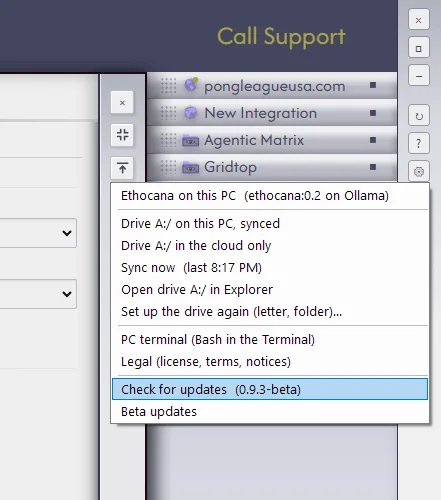
Ready: The gear on the silver bar has Sync now, cloud only, and this setup again.
Decline, and everything stays online, as in your browser.
39.2 Choosing the Drive Letter
Any letter not already in use may be chosen, except C. The app suggests A, to match Gridtop, where your drive is always A:/. The letter belongs to this computer; another computer of yours can use a different one. To change it, choose Set up the drive again (letter, folder)... from the gear menu. In Windows, the drive is labelled Autocomputing.
39.3 Two-Way Sync
Your drive online is the drive; the copy on your computer is its mirror, and a backup of it. The app keeps the two in step: a change you save on your computer goes up within a few seconds, a change made online (by you in the browser, or by an agent) comes down within about ten seconds, and the whole drive is compared when the app starts, every three minutes while it runs, and whenever you choose Sync now.
A file new or changed on one side is copied to the other.
If the same file was changed in both places since the last sync, both are kept: the online one keeps its name, and your computer's is renamed with (this PC), for example price-list (this PC).md. Compare them, keep the one you want, and delete the other.
A file deleted on one side is deleted on the other, and never destroyed. Deleted on your computer, it goes to the Receptaculum online (9.3). Deleted online, your computer's copy is moved aside into %LOCALAPPDATA%\Autocomputing Gridtop\removed. If the file was changed on the other side in the meantime, it is kept, and copied back.
A sync that would remove more than 25 files, and more than a fifth of the drive, removes nothing, and reports what it held back.
Files larger than 500 MB are not copied up; they stay on this PC (22.5).
In the app, the head of the Directorium shows the drive's state: for example A: Synced · 3:41 PM, A: Syncing, or Cloud when the drive is online only.
Your websites appear on the drive too, under Web Server, each in a folder named for its domain. You can open and save their files from any program; each save keeps a restore point first (25.1). Files there cannot be deleted or renamed from Windows.
39.4 Your Drive's Size
Windows shows the drive's size as your plan's storage allowance, and its free space as what is left. When the drive is full, Windows reports it full, as it would any disk.
39.5 The Gear Menu
The gear on the app's silver bar holds its own controls:
Ethocana on this PC, with the model engine it uses (40.1).
DriveX:/on this PC, synced, or DriveX:/in the cloud only: whether the drive lives on this computer.
Sync now, with when the drive last synced; Syncing... while it works.
Open driveX:/in Explorer.
Set up the drive again (letter, folder)..., or Set up a drive on this PC... if you have not yet.