Most of what an agent is can be set from its chatbox and descriptor panel. To see an agent whole, and set the rest, there is its Configure window; for the settings that reach beyond any one agent, there is Properties. This chapter describes both.
To open it, right-click the agent and choose Configure..., or click Config on the CONN tab of its descriptor panel. The window, titled Configure — and the agent's name, has eight tabs:
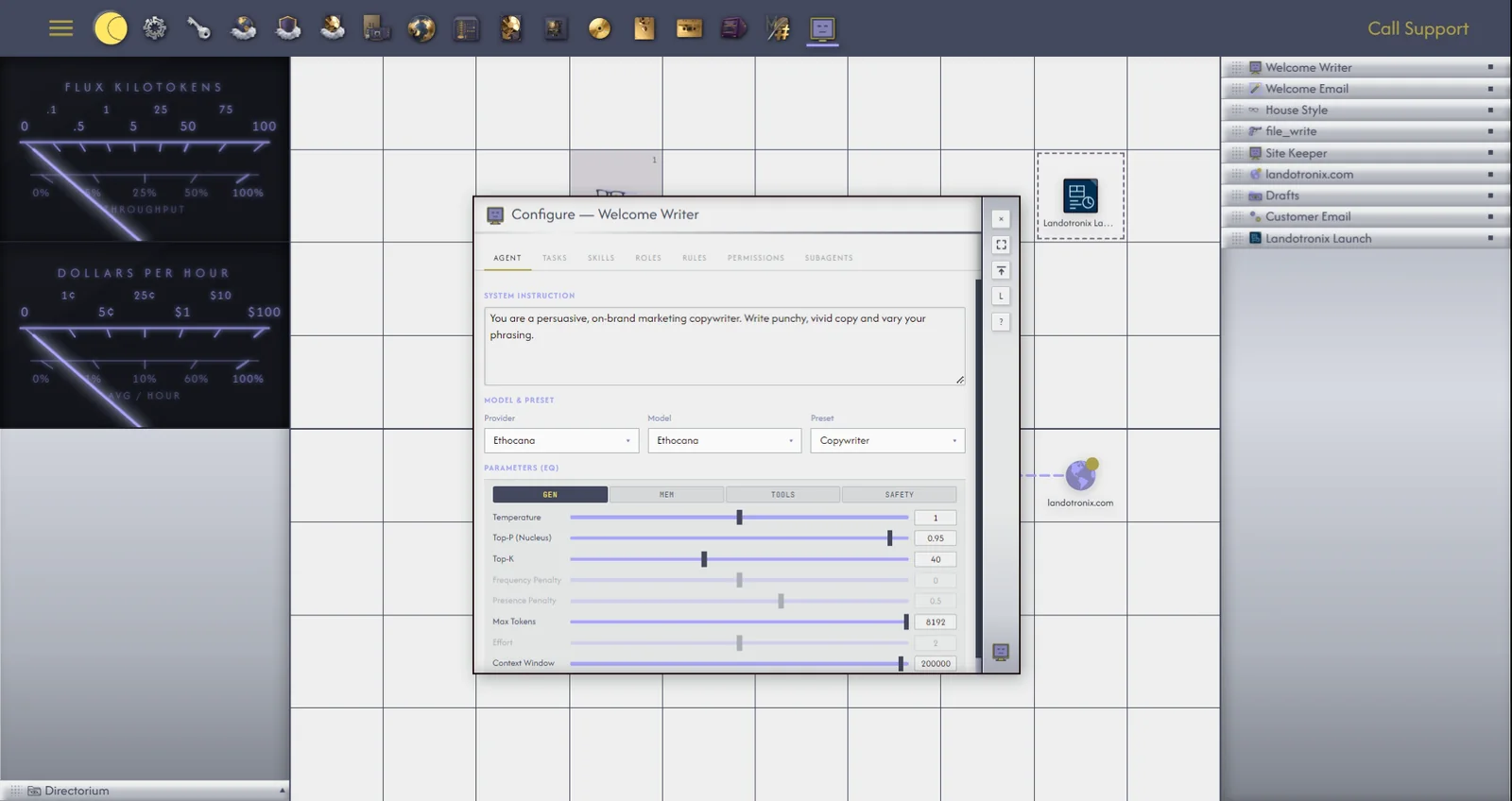
Permissions are the agent's keys, each a tick on the Permissions tab: What this agent may do. Deploy, Forward to Terminal, Make Connections, Configure Agents and Send Outside stay off until you allow them; until then the agent asks.
| Permission | Allows the agent to | A new agent |
|---|---|---|
| Read | Read files on your drive and in the websites it is given, list folders, and look into databases. | On |
| Edit | Write and change files, make folders, and pack or unpack archives. | On |
| Stage | Prepare changes to a website's staged versions. | On |
| Backup | Take a backup before a change. | On |
| Server Push / Deploy | Put changes live on your website. | Off |
| Forward to Terminal | Hand commands to the Terminal. | Off |
| Make Connections | Draw connection lines, which would give it access to what lies at the other end (7.2). | Off |
| Configure Agents | Change another agent's settings, or its own ASK FIRST band. | Off |
| Send Outside | Send something out of Autocomputing through an Integration (chapter 32). | Off |
Permissions are checked every time the agent uses a tool, in your browser and again on the server, where no instruction to the agent can get round them. An agent without Server Push / Deploy that tries to put a change live does not fail silently: its change comes to you as a proposal, to approve or discard (26.6). Moving or copying a file into a website counts as putting it live.
When an agent needs a permission it lacks, it asks in its chat instead of failing. A card names the agent, the permission and what it wants to do, such as the tool and the file. Choose:
Stopping the reply withdraws the question. A Tool of your own marked to ask first (16.4) asks the same way.
DIR shows your drive and your websites' folders as the drive picker does (12.5), with a search-and-address bar. Tick a file to link it into the agent's context: it is shown with every message, as a price list, a style guide or a page of your website might be. Each drive file also has three buttons: send it to the open preview (for a staged file), have the agent read it again at its next step, and reload it in the Editor.
When the linked files are small (up to eight, of up to 12 KB each and 48 KB in all), the agent is shown them whole. When they are larger, it is shown only the passages most like your message, chosen afresh each time, as the CHUNK, RAG LIM and VEC SIM bands set (14.1).
USE shows how much the agent has used: its tokens and their cost (chapter 21).
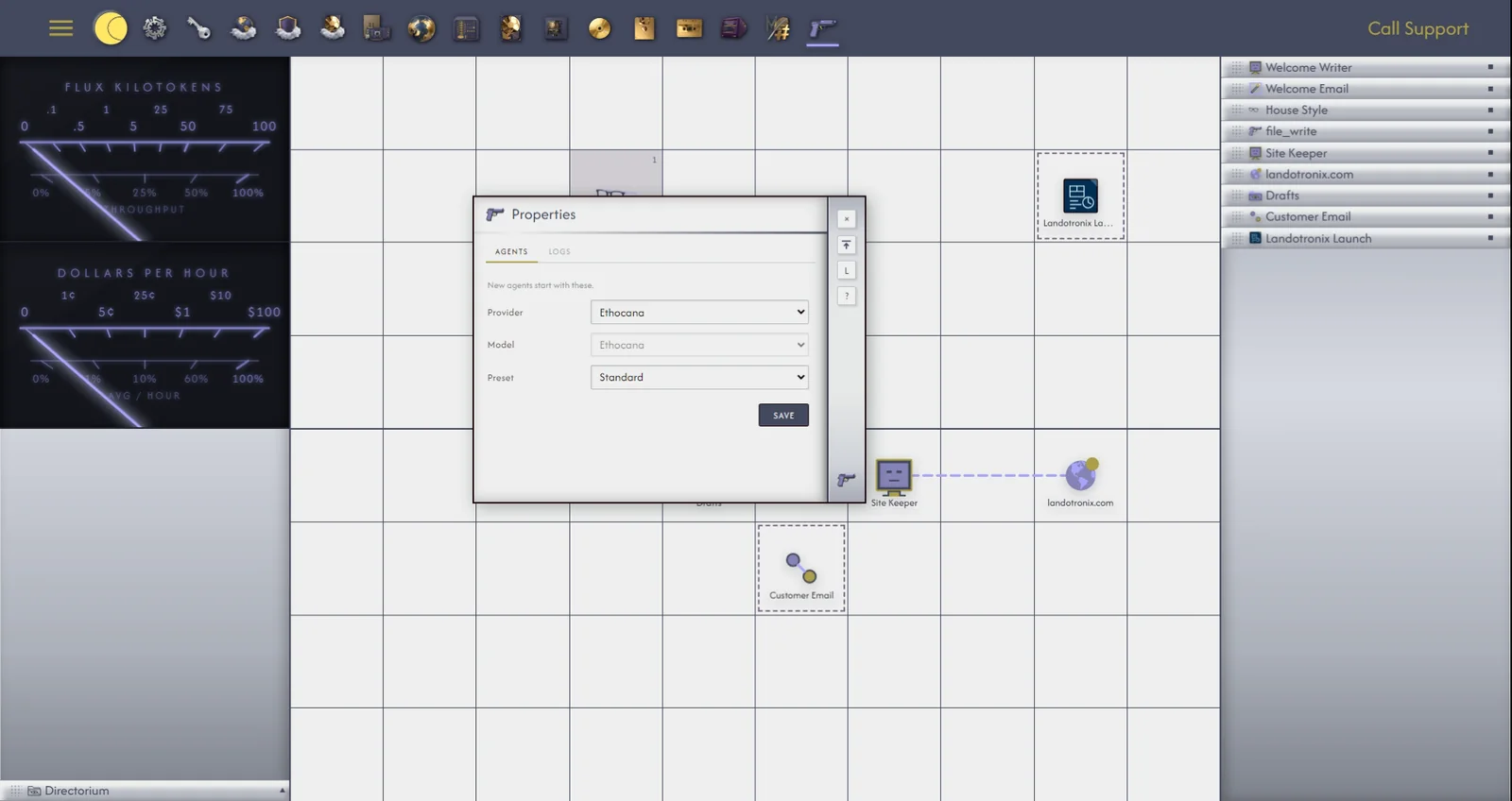
Properties holds Gridtop's own settings, those that reach beyond any single object. To open it, right-click an empty cell and choose Properties…. Its tabs are Agents, Imagery, Email and Logs, and each choice saves as you make it, with a readout to say so.
The Agents tab reads New agents start with these. Choose the Provider, Model and Preset every new agent should begin with. If you do most of your work on a model you have connected (chapter 13), set it here, and new agents start on it rather than on Ethocana. These are defaults only; the agents you already have are not changed.
Imagery: the model that sees images and video for agents. Agents on Claude, GPT, Gemini and Z.ai see pictures themselves, and an OpenRouter model does when its listing says it reads images; an agent whose model reads only text is given a description of each picture instead, made by the model chosen here. Video is always seen as frames. Choose the Provider and Model, or leave Automatic, which takes the first you have connected. Agents also use this model for their look tool, to examine a picture or video on your drive (47.5).
Each agent has an email address of its own, so that you can send it work from your phone or your mail program. The Email tab reads Who may email each agent. and lists every agent with its address: the agent's name, an equals sign, your main domain without its ending, then @autocomputing.ai, for example [email protected]. Click an address to copy it.
+ Add email beneath an agent adds a sender who may email it; × takes one away. Mail from anyone not listed is dropped without a reply. The first message from a sender each day is answered with the agent's state and a confirmation link; the link asks for your two-factor code before anything runs, and then lets you run the request at once or at a time you choose. Later mail that day runs at once. The agent works with its own instruction, tools and permissions, replies by email from its own address, and puts the question and answer into its chat. A message may also carry STATUS, HELP, MODEL= or PROVIDER=.
The Logs tab sets the folders where Gridtop keeps your recordings (35.3) and logs. Click Choose... beside each to pick the folder in the drive picker. Recordings go to A:/Agentic Matrix/Recordings unless you choose otherwise; Gridtop makes the folder if it does not exist.
