An agent's instruction says who it is. Tasks, Skills, Roles and Tools say what it does, what it knows, what character it takes on, and what it can use. Each is an object of its own, which you create once, connect to as many agents as need it, and change in one place.
Their settings windows show the settings most people need. Settings ▸ Appearance ▸ Configuration ▸ Advanced adds the rest to the Tool, Skill, Role and Task windows: webhooks, Integration actions, limits, retries and the like (34.1).
A Task is a standing piece of work, written down: what is to be done, and how. A connected agent (7.2) is told about it every time it works.
The files list beneath shows every file saved with the Task, with where it is kept; click one to open it. Save As .md saves a copy of the Task's words anywhere on your drive.
Max Steps. Each tool an agent uses is a step. Max Steps sets how many an agent may take on this Task, from 1 to 100: Agents connected to this Task run up to this many steps. Blank: each agent's own Max Steps. When an agent is connected to several Tasks, the highest Max Steps among them applies.
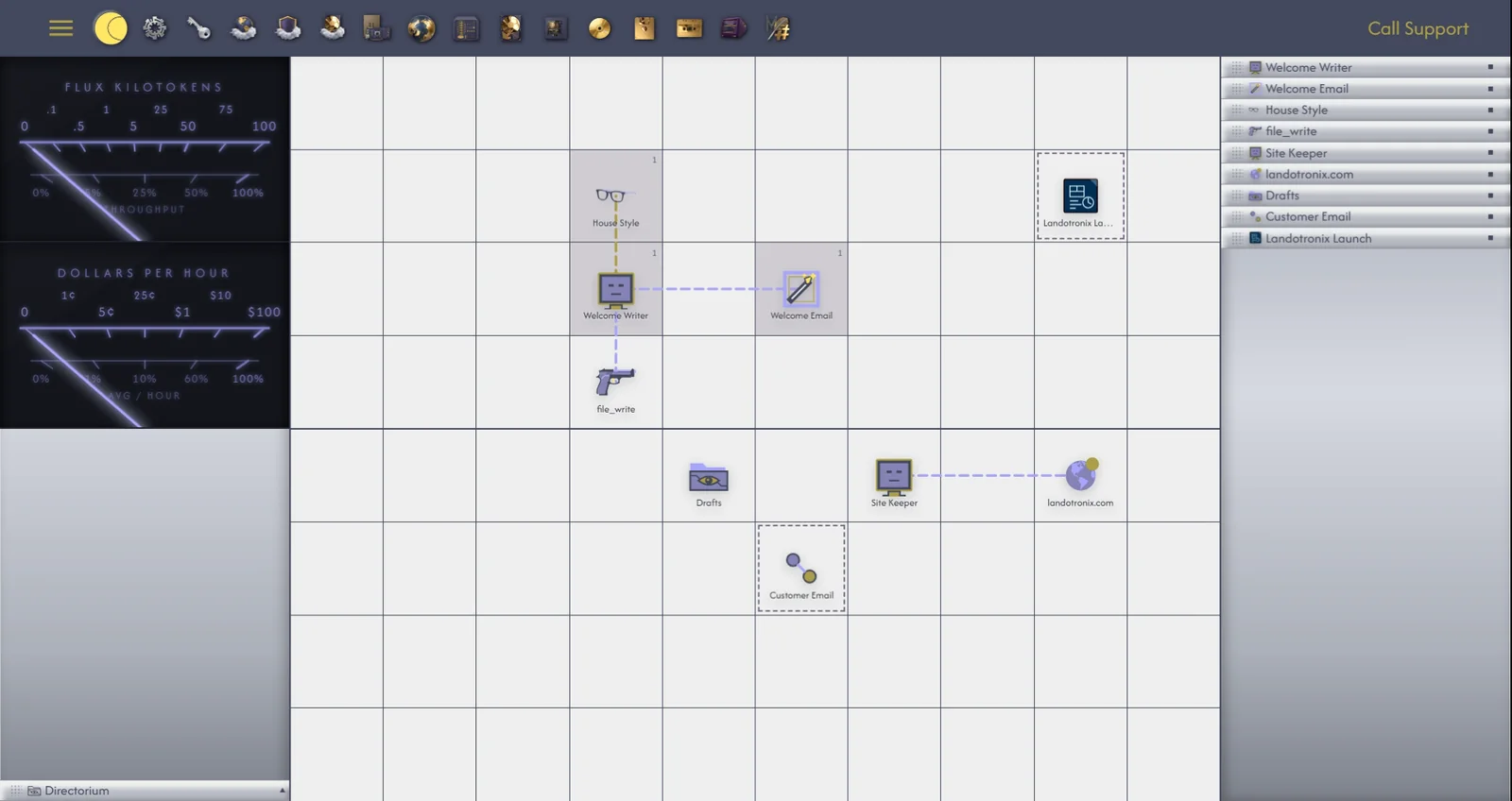
A Skill is know-how an agent draws on when a piece of work calls for it: how your business writes its invoices, how your pages are laid out, the house style for your emails. Where a Task says do this, a Skill says here is how.
To write a Skill, right-click it and choose Define Skill...: Write this Skill's SKILL.md and Save to Skill. Click a file in the list to open it. The Skill is kept as a file named SKILL.md in its own folder, the same form other agent programs use, so Skills travel both ways: the Skills tab of the Harness app brings one in from your drive (a folder holding a SKILL.md, or a .zip of one), screening it first, and sends one of yours out as a .zip (32.3).
To give an agent a Skill, connect them (7.2), or right-click the agent and choose Add Skill, which places a new Skill in the first free cell and connects it.
A Role says who an agent is: its name and purpose, its instruction, its model and preset, the Tasks, Skills and Tools it carries, and how far it may act on its own. A Role gives several agents the same character, or moves an agent from one character to another in one step.
To choose one of Gridtop's roles, right-click the agent and choose Roles, then one of the eight presets (14.3).
Saved Roles are listed in Memory Banks ▸ Saved Roles (18.2), from which you can give them to other agents.
A Tool is a capability an agent can use: reading a file, publishing a page, looking into a database. Every agent can use Gridtop's own tools within its permissions (15.2); Tool objects let you see, adjust and hand out tools as things of their own.
To open the Tools library, right-click an empty cell and choose Configure ▸ Tools…. The Tools window has two tabs: My Tools, the tools you have made or copied, and System, Gridtop's own, which you can read but not change. For each: Open shows how it is set up; Place on Gridtop puts it on the grid, ready to connect; Copy makes a copy of your own (16.5). You can also create Tools from Create New... ▸ Agentic ▸ Tool: New…, From Existing… or System…. An agent's own Tools are listed on the Tools tab of its Configure window (15.1).
The System tools for files and websites are worth knowing by name, because they are how an agent touches your work (47.5 lists them all):
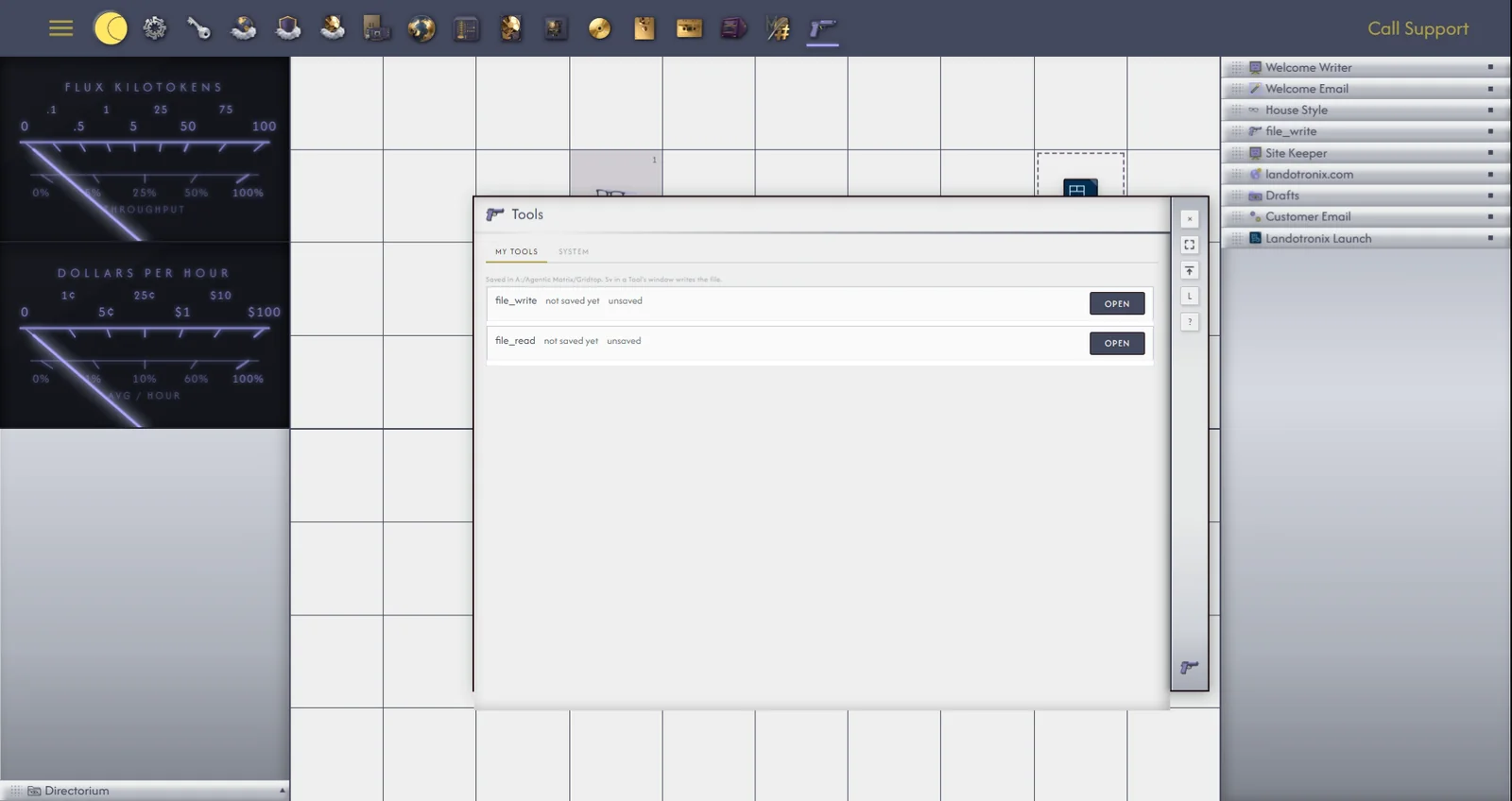
Gridtop's own tools cannot be changed, so that they always behave as this manual describes. To have a tool behave differently, for example always writing to one folder, make a copy (Copy in the Tools library, or Create New... ▸ Agentic ▸ Tool ▸ From Existing…). The copy is yours to change, place and connect like any other Tool.
To turn something you have written in a chatbox into a Task, or add it to one, without copying and pasting: write the message, then click the wand, Add Prompt to Task…, at the right of the formatting toolbar. A banner reads Add Prompt to Task — click an empty cell for a new Task, or an existing Task. Double-click to open Workflows/folders. ESC to cancel. Click an empty cell for a new Task with your words, or an existing Task to add them to it.
A standing rule is something an agent must always, or never, do, whatever else it is asked. Rules are kept on the Rules tab of the agent's Configure window (15.1). + Rule... adds one, in plain words: Always answer in British English, or Never change files outside the Landotronix folder. Double-click a rule to choose every Agent, Role or Workflow that uses it.
One kind of rule is stronger than the rest: deny: followed by a tool's name, such as deny:file_write, forbids the agent that tool entirely, enforced on the server, beyond the reach of any instruction the agent is given.
You need not make every Task, Role, Skill and Tool yourself. Ask an agent, and it can make one, set it up and save it: Make a Role called Copy Editor, for someone who checks our pages for plain English, and save it is enough.
Connection lines give access. A line between an agent and an object is what gives the agent that object: a Role it holds, a Task it carries out, a Skill it uses, a Tool it can call. An agent reads, changes and saves only the objects joined to it. When an agent makes an object, Gridtop places it beside the agent and draws the line at once, so what an agent makes is always its own to work on; anything else it may use only once you connect it, or allow it Make Connections (15.2).
Watching the lines. A line turns yellow while its agent is using the object at the other end: a Tool's line while the Tool runs, and the agent's Role, Task and Skill lines while it works on a reply.
Templates. A few ready-made objects are there to start from: the Roles Web Developer and Proofreader, the Task Weekly Site Check, the Skill House Style and the Tool Scan Website. Ask an agent, for example, Make a Role from the Web Developer template.
Saving. An object an agent makes or changes is saved to its file at once, unless you ask it to wait.
