This chapter walks across Gridtop's screen from top to bottom and left to right, naming each part and saying what it is for. Each part has a chapter of its own later; this is the map.
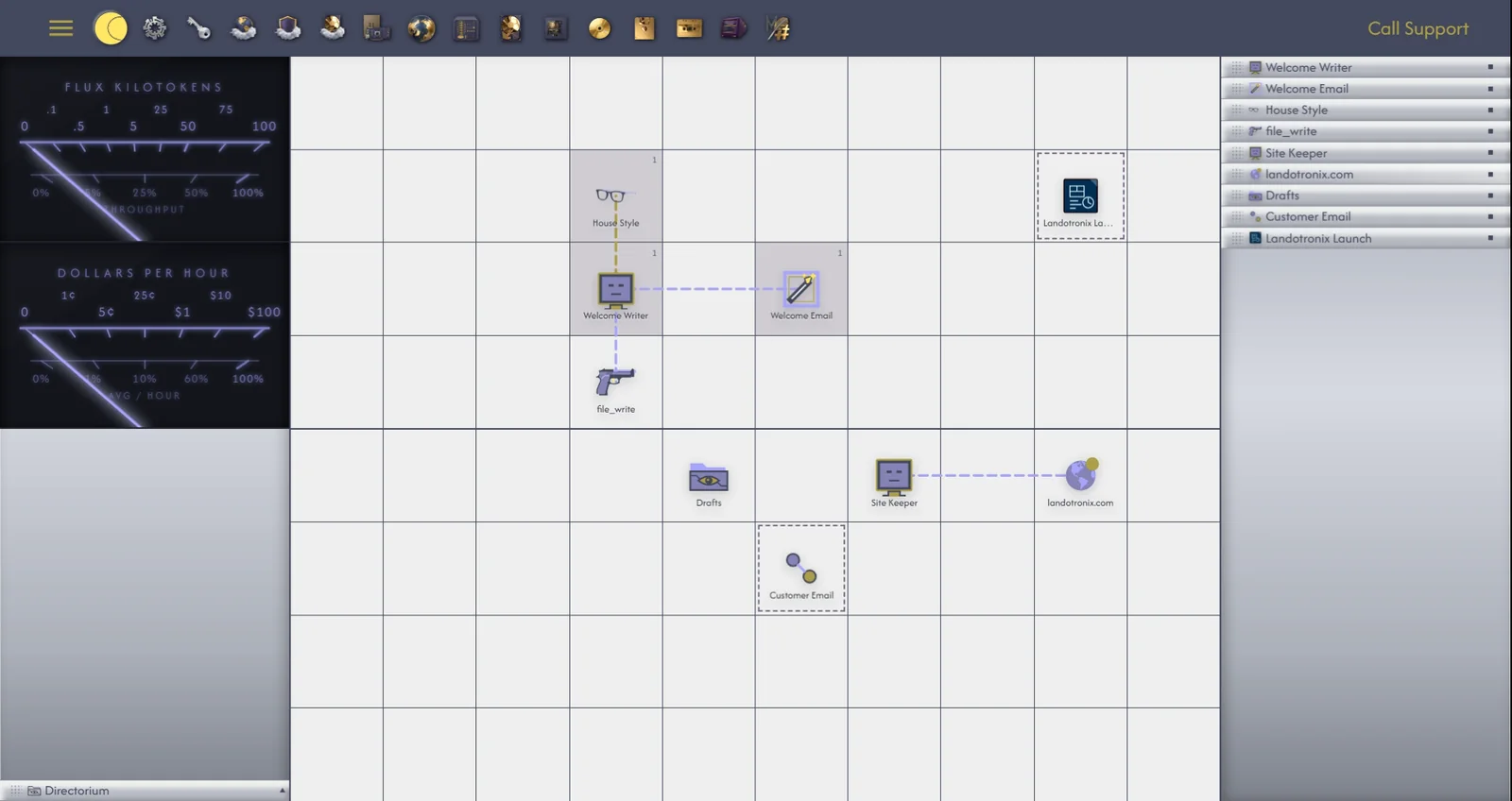
The header is the band across the top of the screen. From left to right it holds:
As Gridtop starts, loading bars pass through LOADING..., LAUNCHING CLOUD BACKEND... and AUTHENTICATING..., and a short drum plays, once per visit. To start in silence, turn off the startup sound in Settings ▸ General (34.1).
Double-click an icon in the app drawer to open its app. Once an app is open, a single click on its icon brings it to the front, rolls it up out of the way, or unrolls it again, so the drawer also works as a switcher between open apps.
The apps, in the order they appear:
| App | What it is for | Chapter |
|---|---|---|
 Settings Settings | Your account, billing, preferences and the Terminal. | 34 |
 APIs & Models APIs & Models | Connecting AI providers, and Ethocana. | 13 |
 Cloud Security Cloud Security | The security of your cloud services. | 25.3 |
 Cloud Backups Cloud Backups | Your A:/ drive, and the restore points saved before every change to your websites. | 25 |
 Harness Harness | Agent harnesses such as OpenClaw and Hermes, the keys that let outside agents use your Gridtop, and Skills in and out. | 32.3 |
 Autocomputing '26 Autocomputing '26 | The Windows app: getting it, what runs on your PC, its models and its updates. | 38 |
 Domains Domains | Your domains, their DNS records, and registration. | 30 |
 Server Server | Each of your websites: its folder, domains, databases and forms. | 28 |
 Index Index | Your drive, in a detailed list. | 22.3 |
 Computer Computer | The Registry: the settings behind every part of Gridtop. | 33 |
 Media Media | Playing sound and video, and media tools. | 24 |
 Memory Banks Memory Banks | Your agents' memories and saved Roles. | 18 |
 Logs Logs | The activity log, reports to us, and recordings. | 35 |
 InBrowser InBrowser | Your open browser tabs, which your agents can read. | 32.4 |
 Editor Editor | Every text and code file, in tabs. | 23 |
While something is playing, a spinning disc appears in the drawer as well (24.3).
Windows and their buttons. Every app opens in a window that you move by its title bar and resize from its edges. The title bar carries Close (which asks for a second click, "Click again to close"), Maximize / Pop Down, Window Shade, Break Out, D (Dock to Descriptor Panel), L (Lock Window) and ? (What's This?). Chapter 10 explains each.
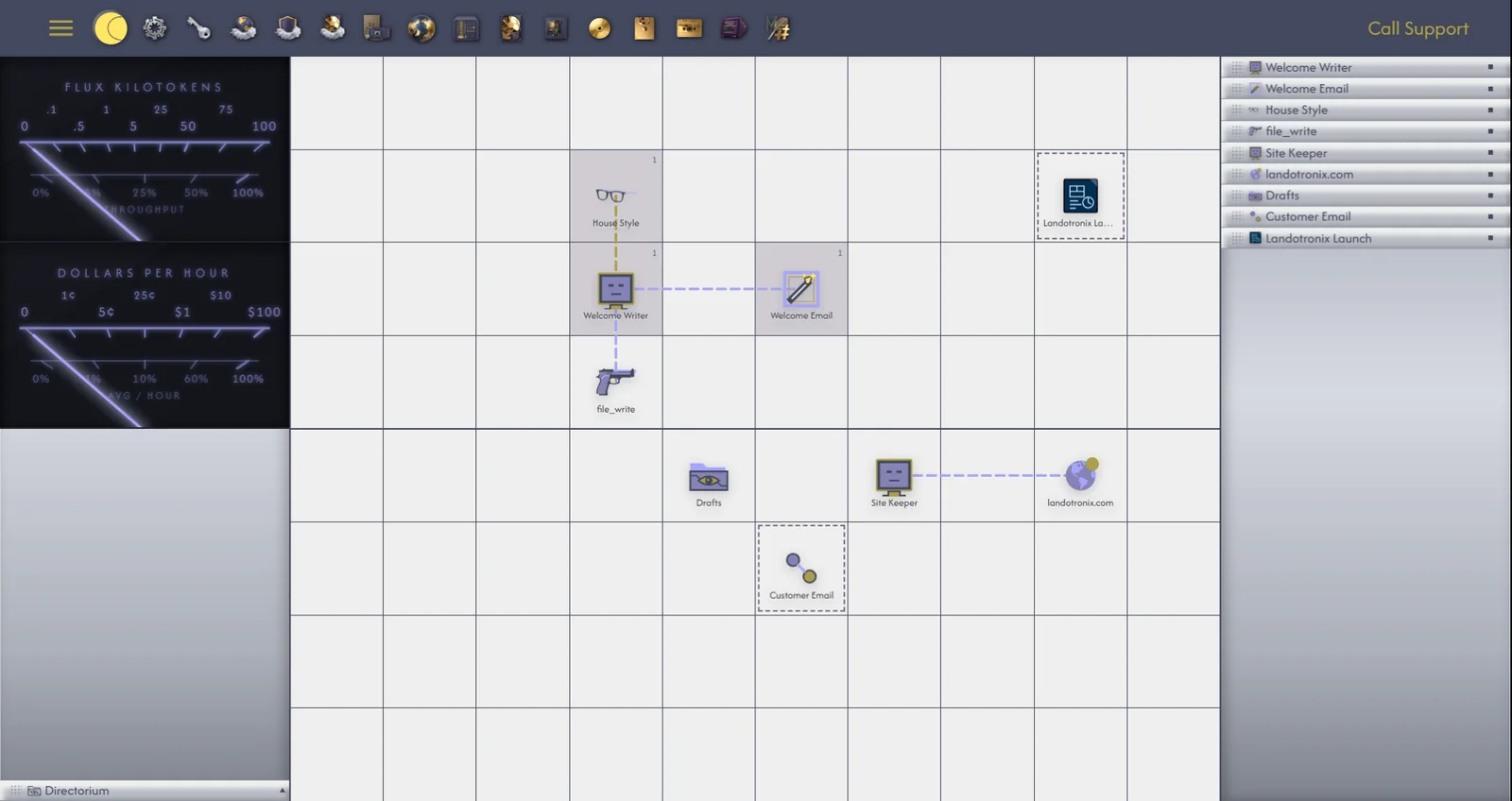
The grid is the heart of Gridtop: a surface of cells, twelve across and eight down, on which your agents, Tasks, folders, Web Fronts and other objects sit, one to a cell. You place objects on it, move them, group them and draw connections between them, and the arrangement is saved as you go.
When your window is narrower than twelve columns, the grid shows fewer, and objects that would fall outside move to the nearest free cell. If there is no room for everything, Gridtop says how many objects are off-screen until the window is wider; widen the window, and they return. Chapter 5 explains the grid in full.
At the left edge of the screen is the File Directory panel, headed Directorium. It starts collapsed; click its arrow (◄) to open it. Beneath its heading is a tree of your drive, starting at A:/.
Right-click a file for what can be done with it; double-click it to open it, in the Editor for text or the Media app for pictures, sound and video; or drag it onto the grid to place a shortcut to it there. Chapter 22 explains the drive in full.
Every object on the grid has a descriptor panel: a small card that describes the object and holds its controls. Descriptor panels gather in the right pane, one per object; you can float them anywhere on the screen, or leave them docked in the pane.
A descriptor panel has a header, with a grip for dragging, the object's small icon and its name, which you change by typing into it; tabs, three at a time, with arrows to reach the rest; and a height control (■), which steps the panel through collapsed, expanded, half-height and full-height.
An agent's descriptor panel is the one you will use most. Its tabs are:
Much of Gridtop's work begins with a right-click, and what appears depends on what you right-click.
An empty cell opens the grid's own menu:
With objects selected, Select Group, Remove, Delete, Ungroup and Disconnect join the menu as they apply.
An object opens a menu for that object; an agent's begins with Chat.... Each object's menu is described in the chapter about it.
Silver menus are the drop-down menus that open from Gridtop's buttons and chips, such as the provider chip under a chatbox. They show a check mark (✓) beside the current choice, group their items between separator lines, and open submenus to the side. Clicking a chip again closes its menu.
Short messages, which we call readouts, appear at the foot of the screen for a few seconds, to confirm what has just happened or to say why something could not be done. Several can show at once, the newest at the bottom; a message that repeats shows a count, such as ×2. A readout about something that went wrong is red, stays longer, and closes with its ×. Resting the pointer on a readout keeps it on the screen.
Most readouts are in English. A few are in Latin, by design, because Latin says in one or two words what English needs a sentence for:
The folder where deleted files wait carries a Latin name as well: the Receptaculum (9.3). Chapter 44 lists the readouts you are likely to meet.
Gridtop's meters are two dials in the manner of the VU meters on a sound desk, whose needles swing with activity. They are a widget on the grid: one block, six cells across and two down, always the same size and shape.
To place the meters, right-click the Autocomputing logo in the header. A see-through copy of the two cards follows the pointer, snapping to the cells it would take. Click to set it there (icons in those cells move aside to the nearest free cells), or press ESC to put it away. Right-click the logo again to take the widget off. The meters sit on the main grid only, not in folder, Workflow or Blueprint views, and their place is saved with your grid.
The readings that follow your own work are TOKEN FLUX, how fast your agents are reading and writing, in thousands of tokens, and DOLLARS PER HOUR, what their work is costing you, reckoned by the hour. Chapter 21 explains both.
To choose what a meter shows, right-click it, and choose its reading. The upper card offers MEGABITS PER SECOND or TOKEN FLUX; the lower card offers FLOAT TERAFLOPS or DOLLARS PER HOUR, and the currency, including SHECKELS, EUROS and POUNDS. Your choice is remembered for your account.
Click the lower meter to turn it over. On FLOAT TERAFLOPS, its back lists your busiest agents today, with the tokens each has used and how fast it writes. On DOLLARS PER HOUR, its back sets your spending against your monthly budget: the last hour, the last 24 hours and this month, and how much of the month's budget is left. Click again to turn it back.
