Some work should happen whether or not you remember to ask for it: a morning summary of the orders that came in overnight, a weekly check of your website's pages, a reminder drafted every Friday. Schedules set your agents to work on a timetable, and deliver their replies to their chatboxes for you to read when you return.
Right-click an empty cell and choose Configure ▸ Schedules…. The window explains itself: Work your agents do on a timetable. The server runs it every 15 minutes; with a Gridtop open, on the minute. Replies land in the agent's chat. Beneath are your schedules, each with its name, agent and Task, how often it runs, when it will run next and last ran, and its last few runs with their results. New schedule begins another.
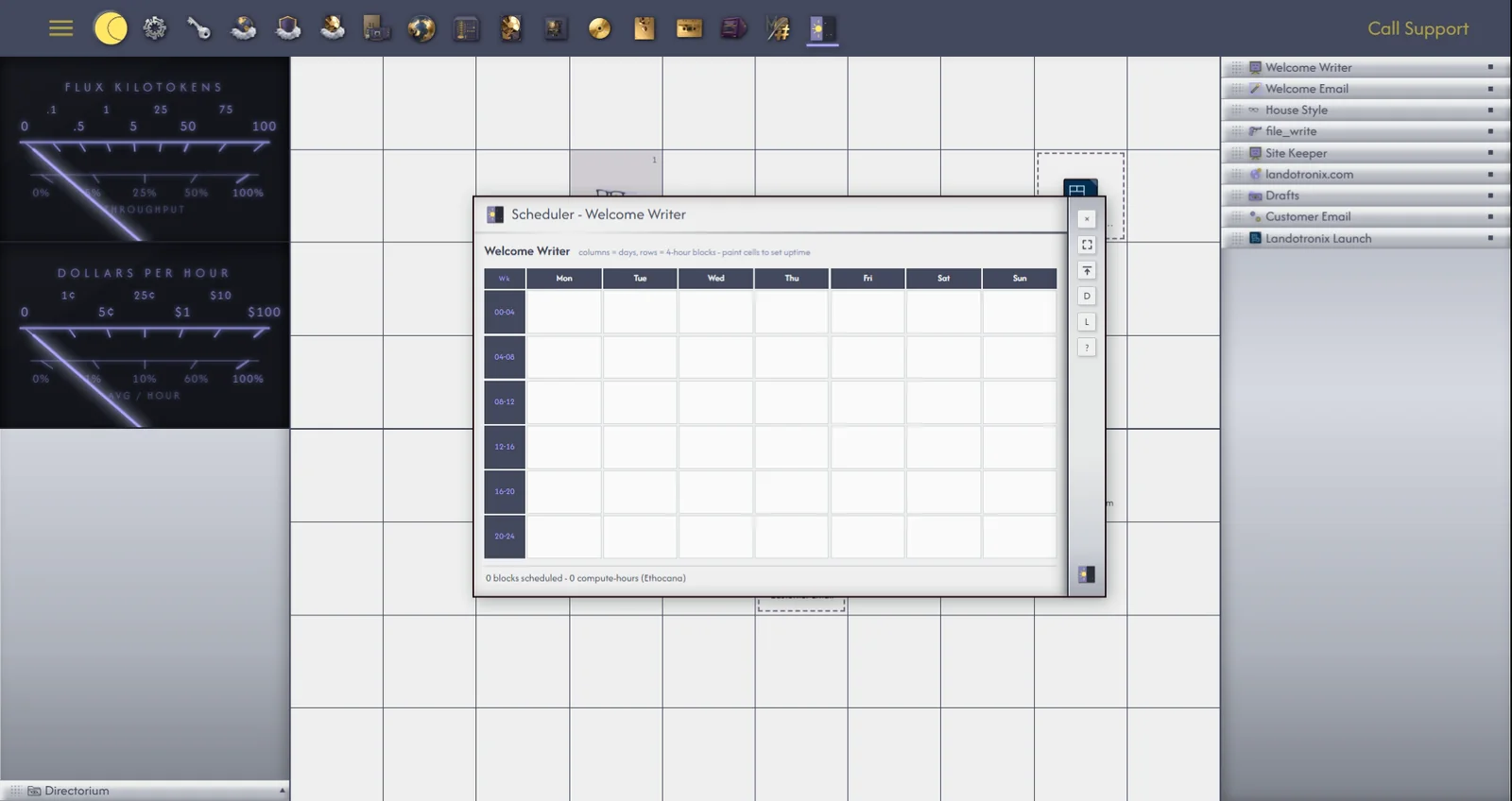
Times are your own local time; the schedule remembers your time zone.
A scheduled agent works while you are away, so you decide in advance how far it may go. Allow changes: Let the agent change files and hosting (through the same checks as any agent action). Off: it can only look. With it clear, the agent can read and report but change nothing; ticked, it can change files and hosting within its own permissions (15.2), and the schedule is marked may change things in the list.
Each run arrives in the agent's own chat, headed [Scheduled: and the schedule's name, with what it was asked and its reply. If your Gridtop is open when a reply comes in, it says Scheduled reply received.
Scheduled work runs on the server, and in 1.0-beta the server can give agents their tools only for some providers. On OpenRouter, Ethocana, OpenAI (GPT), DeepSeek and Z.ai, a scheduled agent can list, read and, with Allow changes, write the files on your drive, and use the hosting tools, in up to twelve steps a run. On Claude and Gemini, it can think and write but not use tools; its reply says what it would do. An agent set to This PC is answered by Ethocana on a schedule, since the server cannot reach your computer.
Each schedule has Edit, to change it; Run now, which runs it at once (Gridtop confirms Started.); and Remove, which deletes the schedule after asking Remove this schedule?, leaving the agent and its conversation alone.
To pause a schedule, Edit it and clear On; the list marks it (off) until you tick On again. A run already under way is allowed to finish.
