The lines between objects on the grid are connections. They tell Gridtop which things work together: this agent carries out that Task; this agent may use that Tool. This chapter explains what a connection means, how to draw one, and how to change or remove it.
A connection runs from one object to another, in one direction, and means that the first serves or uses the second. An agent connected to a Task carries out that Task; connected to a Skill, it draws on it; connected to a Tool, it may use it. When an agent works, Gridtop tells it about everything it is connected to, so its connections become part of what it knows and what it may do. A connection is also what gives an agent access: it reaches a website's files, and reads or changes a Task, Role, Skill or Tool, only through a line to it (16.8).
The line on the grid is the visible form of that relationship, and the relationship is kept in the agent's own file as well, which is why an agent remembers its Tasks and Skills when you open it somewhere else. Connections can also form chains, such as an agent passing its finished work to a second agent, which hands it to a Task.
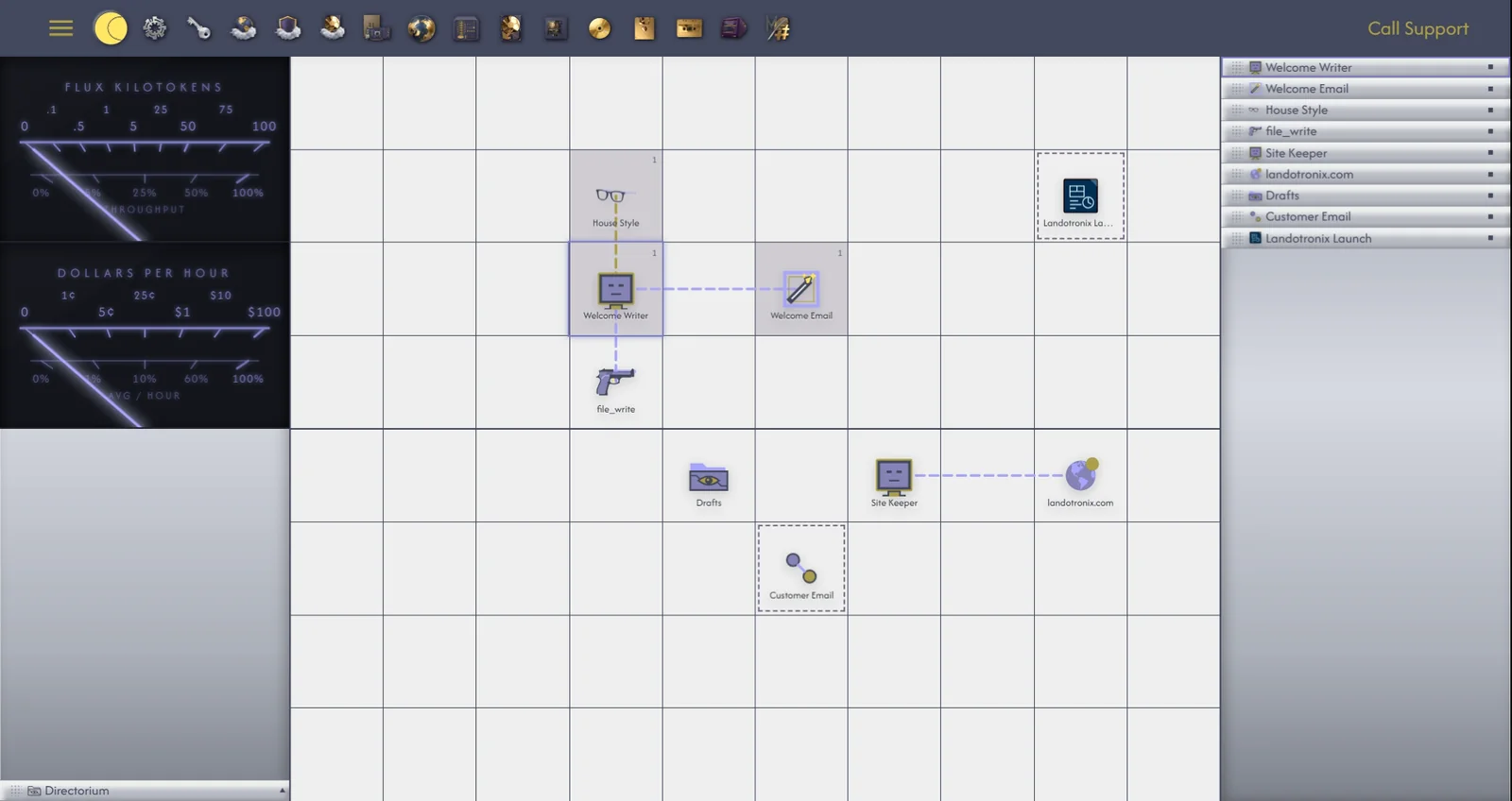
By dragging. Drag a Task, Skill, Role or Tool onto an agent. Gridtop connects it to the agent, and the object returns to its own cell.
With the magenta marquee, to connect several objects at once, or objects that are not a Task, Skill, Role or Tool:
Lines run from the centre of one cell to the centre of the other, and follow the objects when you move them. Add Task (4.5) and Add Skill draw the connection for you.
Right-click a connection line for its menu. The first line shows the chain the connection belongs to, for example Chain: Welcome Writer -> Welcome Email. Reverse Direction turns the connection round; Disconnect removes it.
Right-click the line and choose Disconnect, or select a connected object and choose Disconnect from the grid's right-click menu. Both objects stay as they were; only the relationship between them goes. Like every change on the grid, it can be undone with CTRL+Z (9.2).
