Autocomputing '26 is Gridtop's app for Windows. It shows the same Gridtop you use in your browser, in a window of its own, and adds what a browser cannot: your drive under a letter in Windows, models, media tools and agent harnesses running on your own computer, and updates that look after themselves. This part covers the app; this chapter explains how to install it.
You do not need to be a Windows administrator. The app installs for your own Windows account; only the optional drive component asks Windows for permission, once (37.3).
To get the installer, open the Autocomputing '26 app from the app drawer in your browser and click Download. The download is a .zip file holding the installer, Autocomputing-26.exe, and this manual. Unzip it, then run Autocomputing-26.exe.
The installer begins with a welcome, then the Install Agreement: the terms you accept by installing, which include the End User License Agreement, the Gridtop Service Terms and the Privacy Addendum. Read it; install only if you agree.
Then choose your options, Create a desktop shortcut and Install the PC drive component (Dokany) (for your drive to appear in Windows under a letter, chapter 39; you can add it later), and click Install. When it finishes, Open Autocomputing '26 starts the app.
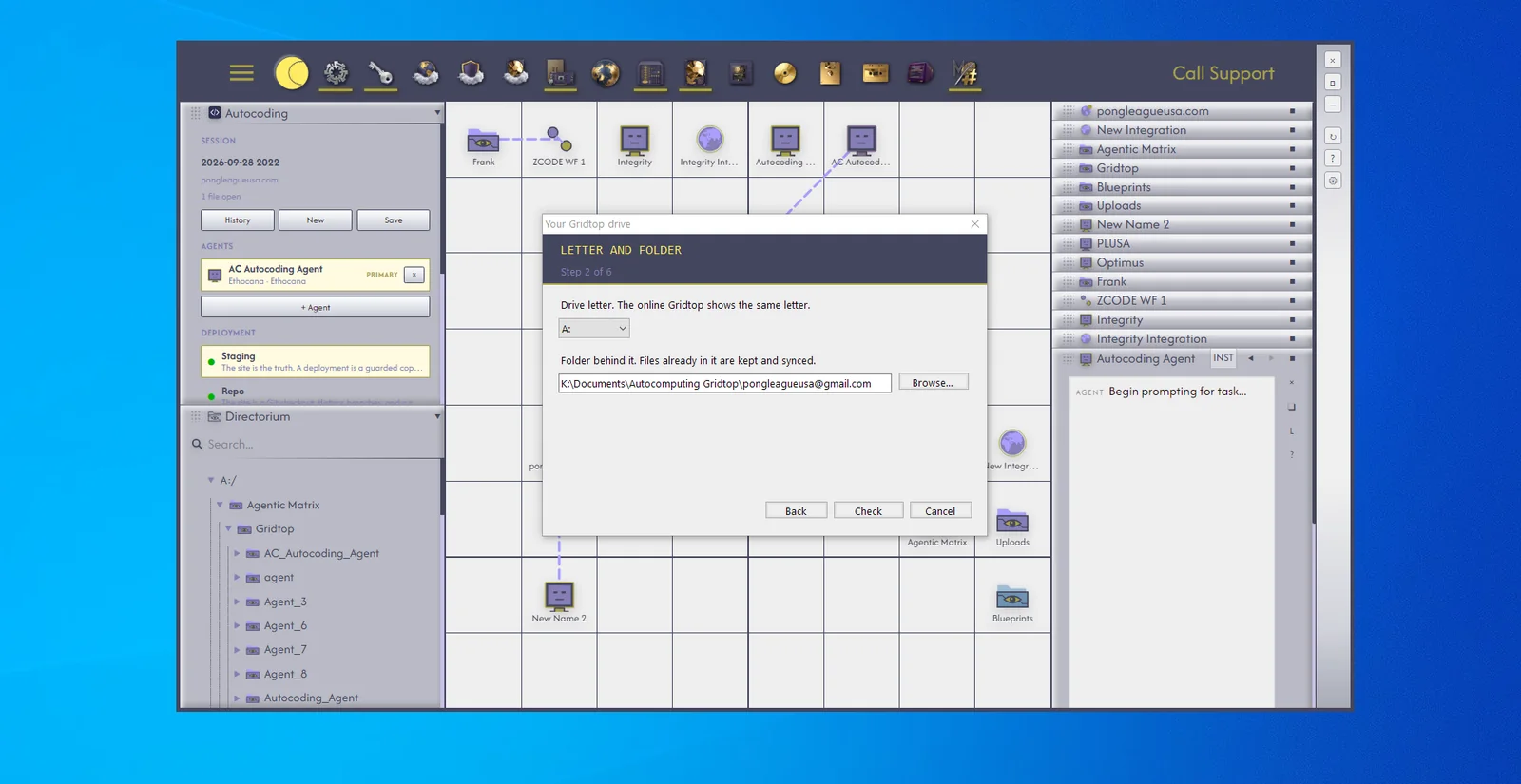
Your drive can appear in Windows as a real drive, under its own letter, through a small, widely used open-source component called Dokany. If you tick it, the installer's PC drive component page explains:
When Windows asks for permission, click Yes. The installer reads Installing the PC drive component... while it works.
If the app is already on your computer, the installer says Autocomputing '26 is already installed, with the version you have, and that your settings, sign-in and drive stay as they are either way. Choose Update to Autocomputing '26 and the new version, or Repair: reinstall over version and your version, to reinstall what you have if something has gone wrong with it.
You will rarely need the installer again: once installed, the app updates itself (chapter 41). An install that began under the app's earlier name moves to the new name by itself, shortcuts included. Uninstalling leaves your settings and your drive folder on the computer.
