The chatbox is where you and an agent speak. You write in your own words; the agent answers and, when it has the permission and the tools, acts. This chapter describes every part of it: sending and stopping, speaking while the agent is busy, attaching files and pictures, formatting, copying and saving a conversation, and handing a command from the agent to the Terminal.
To open an agent's chatbox, right-click the agent and choose Chat..., or double-click the agent. A fresh conversation begins with Begin prompting for task...; an existing one opens at its newest message.
From top to bottom, the chatbox holds:
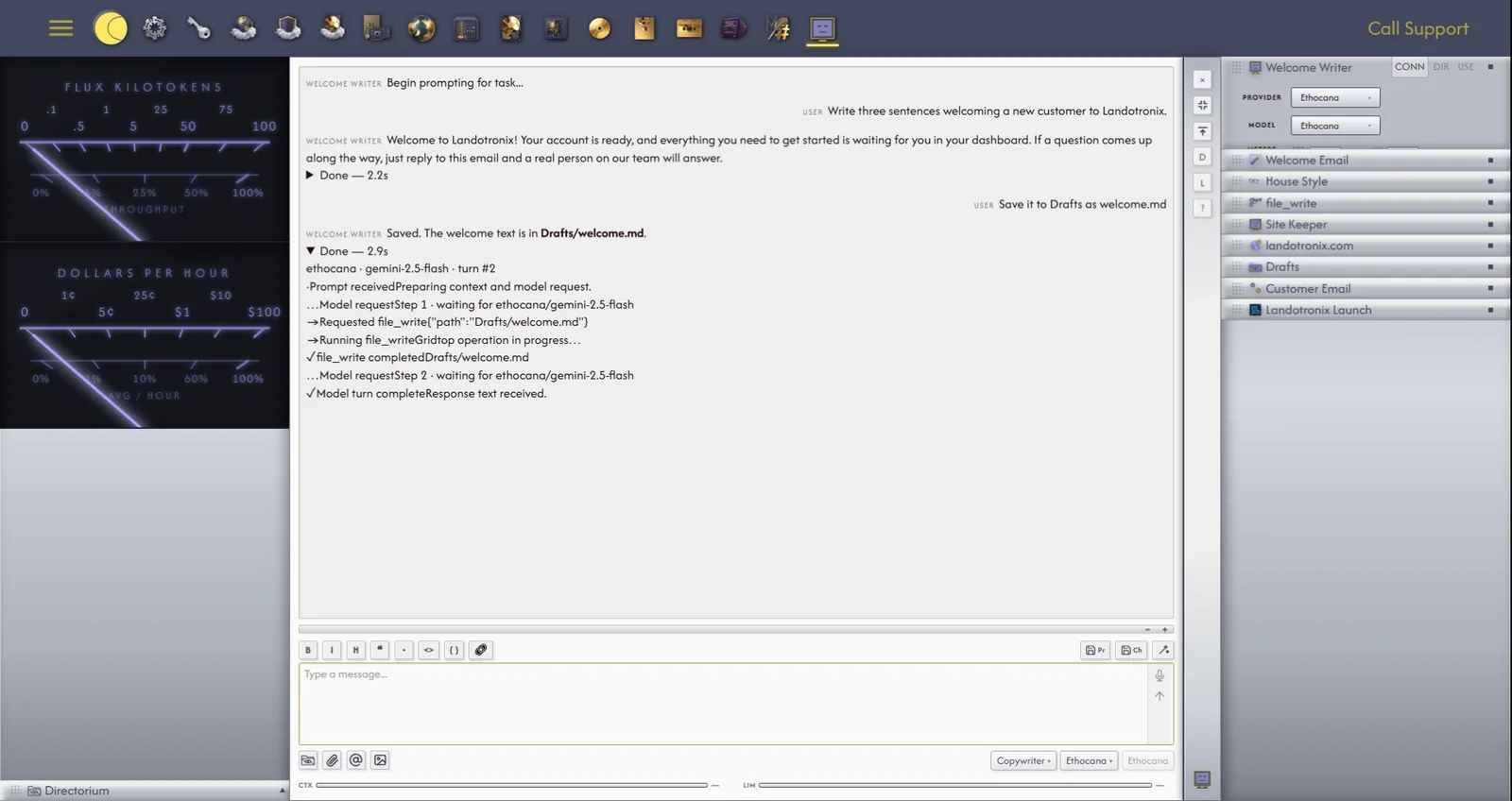
The chatbox's window buttons work as every window's do (10.1); D (Dock to Descriptor) places the chat in the agent's descriptor panel as its CHAT tab, and Pop Out floats it again. Docked, the descriptor panel itself becomes the chatbox, turning from silver to white while you work in it, with its controls in rows of their own.
The resize bar. Drag its grip to move the division between the conversation and your message. + (Add Stop) remembers a height you like, and − (Remove Stop) forgets one; double-click the bar to step through your saved heights. Your stops are kept by this browser.
To send a message, type it and press ENTER; SHIFT+ENTER starts a new line. To swap the two, right-click Send and tick Invert ENTER / SHIFT+ENTER. In an empty message field, UP ARROW brings back your last message, with its attachments.
While the agent replies, Send becomes Stop, with a square on it, in every place the chat is shown. Stopping ends the agent's work on the server as well as on your screen; whatever it has written is kept, and if nothing had arrived yet, the reply reads Stopped.
Dictation. Where your browser offers speech recognition, as Google Chrome and Microsoft Edge do, a microphone button titled Dictate sits beside Send. Click it and speak; your words are typed into your message as you finish each phrase. Click it again to stop. Nothing is sent until you press ENTER.
You need not wait for an agent to finish before you speak. A message sent while it works waits beneath the conversation, marked POISED, and your waiting messages are sent one after another, in order, when the agent finishes.
When what you have to say cannot wait, send it edgewise, into the middle of the agent's work: hover over the POISED message until the mark reads EDGEWISE! (Send it now, through the turn in flight) and click it, or right-click the message and choose Send Edgewise. The reply pauses, reading Paused for Send Edgewise.; the agent is told you sent this while it worked, takes it into account, and carries on with what it was doing.
Four chips in the icon row show, and set, how the agent thinks:
Two things are easily confused here, and the chatbox keeps them apart. Attaching gives the agent a file that is already on your drive: nothing is copied, and the file goes with your message. Uploading brings a file from your computer onto your drive first, and then attaches it.
Attaching is also a grant. An agent may read a file you have attached, and work on it in the Editor, even where it would otherwise need a connection line to reach it (16.4).
To attach a file from your drive, click the paperclip (Attach) and choose Attach File. The drive picker opens beside the button: a search-and-address bar at its top (type to search, or type an A:/ address and press ENTER), and your folders as rows. Click a file; Gridtop confirms Attached and its name, and a tag for it appears above your message.
To upload a file and attach it, do any of these:
Each file may be up to 500 MB. A large upload shows its progress in a silver upload dialog, one row per file.
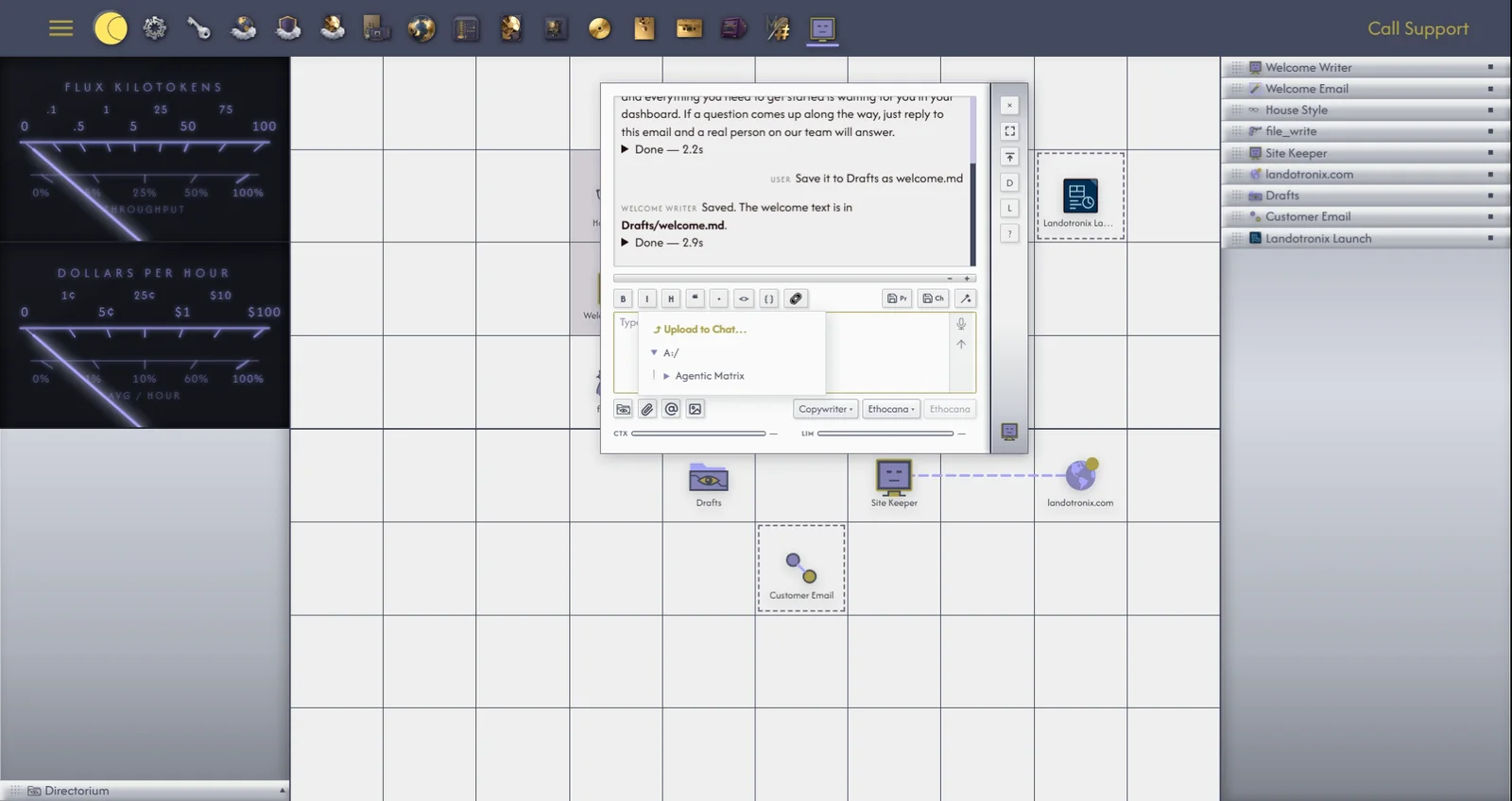
Each attached file appears as a tag above your message: its name, its full place on your drive when you hover over it, and an × to take it off again. Tags go with your next message. In the conversation they appear beneath your message: pictures as small thumbnails, other files as labels showing their type.
Paste a picture into the chatbox with CTRL+V. Gridtop saves it to A:/Agentic Matrix/Uploads under a name made from the date and time, attaches it, and confirms Image attached., or 3 images attached. for several.
The Image button has a picture drawn from your description. Describe the picture in your message, then click Image. Your description becomes your message, and the reply reads Drawing on your PC..., then Drawing... with the percentage done. The finished picture appears in the conversation, and a copy is saved to your drive, its place shown beneath it. With the message field empty, Gridtop reminds you: Describe the picture in the chatbox, then press Image.
Pictures are drawn on your own computer, by the Image Generator in Autocomputing '26 (24.4), which is why two messages may appear:
Replies are formatted as they arrive: headings, bold, italic and struck-through text, bulleted and numbered lists, check-boxes (☐ and ☑), quotations, horizontal rules, links, and code in its own box. Commands meant for you to run are set apart more clearly still (12.13). Tables are not formatted in 1.0-beta; they appear as the plain text the agent wrote.
You can format your own messages with the toolbar, or by typing the same marks. Right-click the toolbar to switch your message between Markdown and Code, to paste a block of code exactly as it is.
A finished conversation cannot be edited; it reads like a document, with a cursor of its own. Click to place the cursor, move it with the arrow keys, and hold SHIFT to select as it moves; links and buttons in it still work.
Selecting whole messages. Click a message to select it (a thin violet line marks it), and SHIFT+click to add or take away others; click between messages, or press ESC, to clear. Each copy takes the selected messages whole:
| Keys | Copies |
|---|---|
| CTRL+C | the messages' text |
| CTRL+ALT+C | their activity: the tool traces and steps (19.1) |
| CTRL+ALT+SHIFT+C | both |
With nothing selected, CTRL+ALT+C and CTRL+ALT+SHIFT+C copy from the message the cursor is in, or the last one with activity. CTRL+A selects every message, CTRL+SHIFT+A the activity between them, and CTRL+ALT+SHIFT+A both.
The right-click menus:
Two buttons at the right of the formatting toolbar save to your drive as Markdown (.md) files, which any text editor can read. Pr saves your message as it stands, as a file named prompt- with the date and time. Ch saves the whole conversation, headed with the agent's name and Chat Transcript, each turn marked Agent: or User:, with any attachments listed. Each opens the drive picker so you can choose where: click the save icon on the folder's row, or right-click the folder and choose Save Here. Gridtop confirms Saved and the file's place.
A long reply does not depend on your page staying open. It runs on the server, and if your page reloads, or you close the tab and come back, Gridtop collects the finished reply a few seconds after it opens, and says A reply finished while the page was away. If the agent had asked for tools that could run only while your page was open, the reply says which did not run.
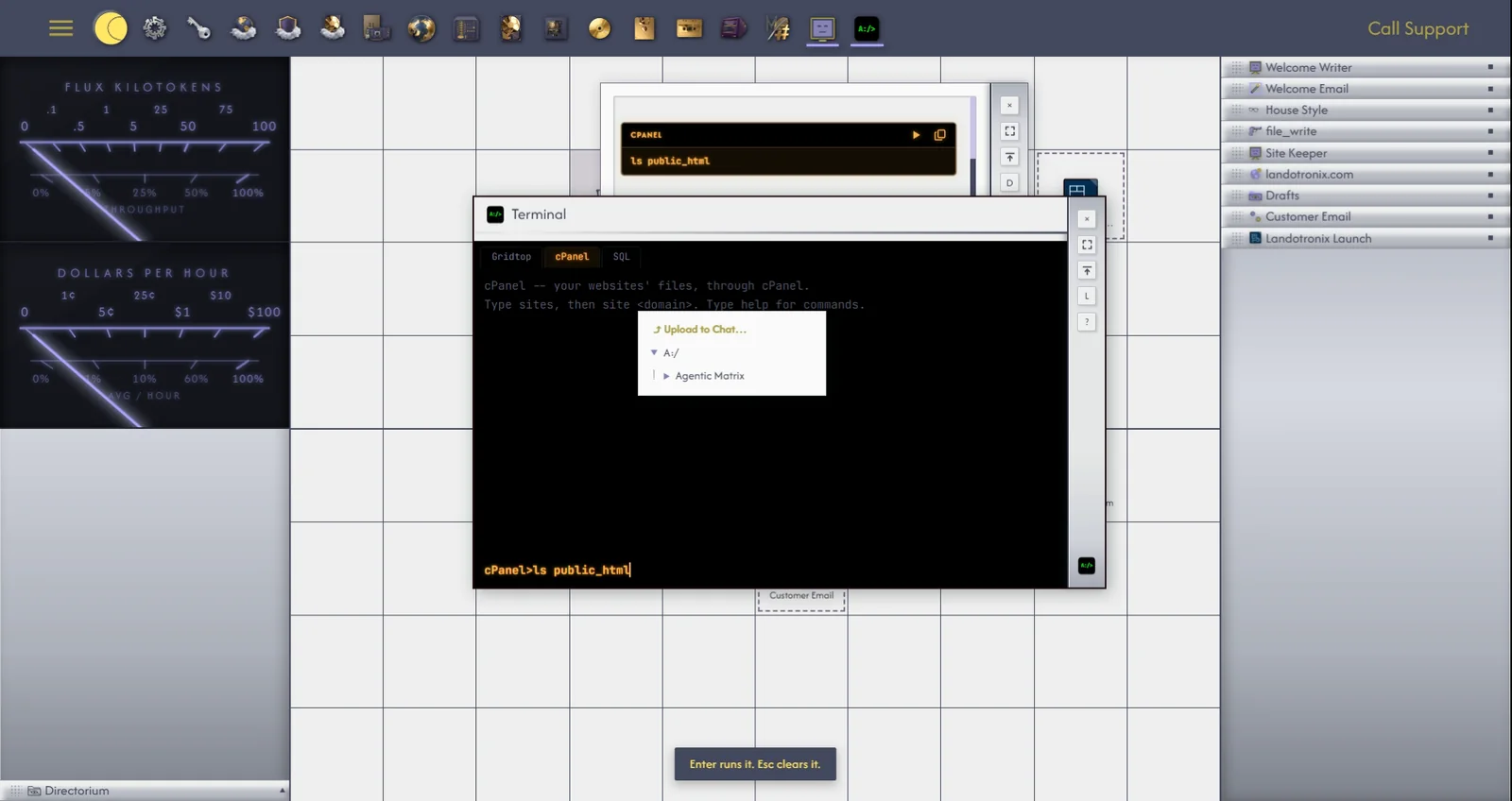
When an agent wants you to run a command, such as a file operation on your website or a query on a database, it does not run it for you. It hands it to you in a command block, lit in the colours of the Terminal tab where it belongs:
| Block | Runs in |
|---|---|
| Gridtop, in blue | The Terminal's Gridtop tab |
| cPanel, in amber | The cPanel tab: your websites' files, through cPanel |
| SQL, in cyan | The SQL tab: your databases |
| Bash, in green | The Bash tab: a shell on your own computer (Autocomputing '26 only) |
Each block has two buttons in its top bar. Run (▶) opens the Terminal at the matching tab and types the command in for you, without pressing ENTER; Gridtop reminds you: Enter runs it. Esc clears it. Copy copies the command. Other code in a reply, such as a page or a script, has a Copy button of its own.
When an agent needs a decision or a fact it cannot find for itself (which of two headlines, which pages to include, a customer's name), it asks rather than guesses. You hear a short chirp, and a small form appears in its chat: round buttons for one choice, tick boxes for several, or a box for your own words. Most questions also offer Other. Click Send and the agent carries on with your answer, the form shrinking to a line saying what you chose; Skip tells it you would rather not answer. While the form waits, the agent waits; stopping the reply (12.2) withdraws the question.
The same kind of card appears when an agent needs a permission it does not have (15.2).
