Adding a field to a website's form, say a telephone number to a contact form, means changing three things that must agree: the form visitors fill in, the program that receives it, and the database table where it is kept. The Form Editor changes all three together, shows you every change before it is made, and can undo it afterwards.
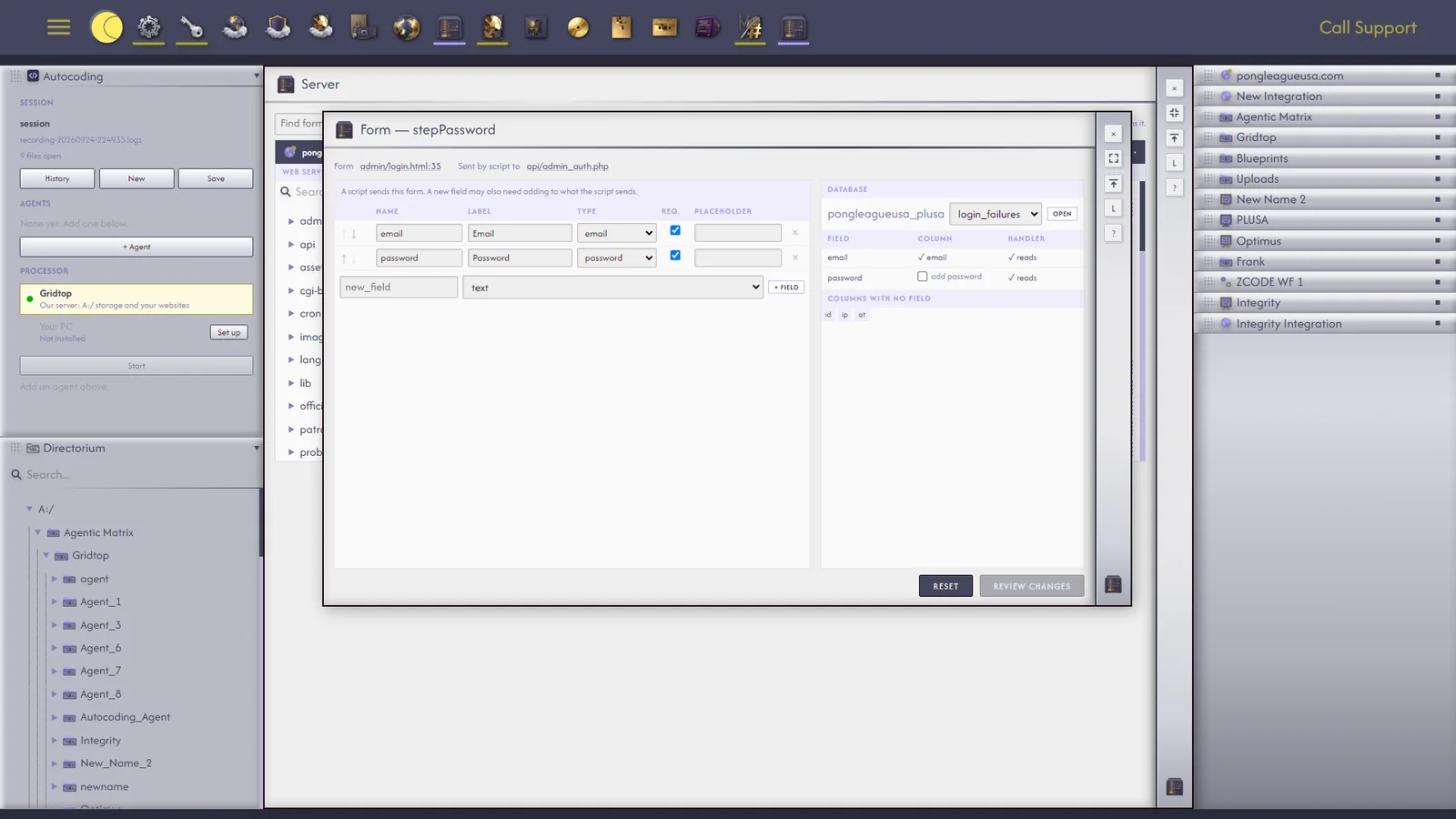
To open it, trace a form in the Server app and open it with its arrow (28.4), or click Edit beside it on a database's Forms tab (28.3). The window, Form — and the form's name, edits the form's fields beside the table its handler writes.
The form's fields are listed in order, each with its Label, Name, Type, Placeholder and whether it is required (Req.). Move up and Move down reorder them, Remove field takes one away, and + Field adds one. For each field you choose the Column of the table it is kept in, and how the receiving program (the Handler) passes it along.
When a new field needs somewhere to be kept, tick its column to be added to the table; Gridtop adds it when you apply the change. Added columns stay if you undo: undoing removes the field from the form and the program, but leaves the new, empty column in the table, where it does no harm.
Before applying, Gridtop keeps a restore point of the files (25.1); if it cannot, nothing is applied, and it reports Could not save a restore point. Nothing changed. Undo last apply takes the last change back, after asking Undo last apply?, and confirms Undone. Reset clears changes not yet applied.
For a site made from a template, the Web Front's Forms tab (26.8) sets where each form's entries go; the Form Editor changes the form itself.
