Every agent thinks with a language model: a large program, run by a provider, that reads what your agent is given and writes its reply. This chapter explains how Gridtop connects to those providers, how you choose the model and effort for each agent, and how we look after the keys that make those connections possible.
Many of the services Gridtop connects to rely on API keys. API stands for Application Programming Interface: a way for one program, such as Gridtop, to use another directly, code to code, so that you can control other services centrally without visiting each one.
An API key is how that other service knows a request is yours. The service issues it to you; you hand it to Gridtop once; from then on Gridtop presents it whenever one of your agents needs that service, and the service bills what was used to your own account with them.
The most important use of API keys on Gridtop is to connect your agents to the large language model (LLM) providers, such as Anthropic's Claude, OpenAI, Google Gemini and DeepSeek. When you connect a provider, the models you have there, and the credit you have bought from them, become available to every agent on your Gridtop. Gridtop also comes with a model that needs no key at all: Ethocana (13.5).
All of this is done in the APIs & Models app, on its LLM Integrations tab: Connect your own provider accounts so your agents answer on your API keys. Each key is checked with its provider, then stored encrypted on your account and never shown again.
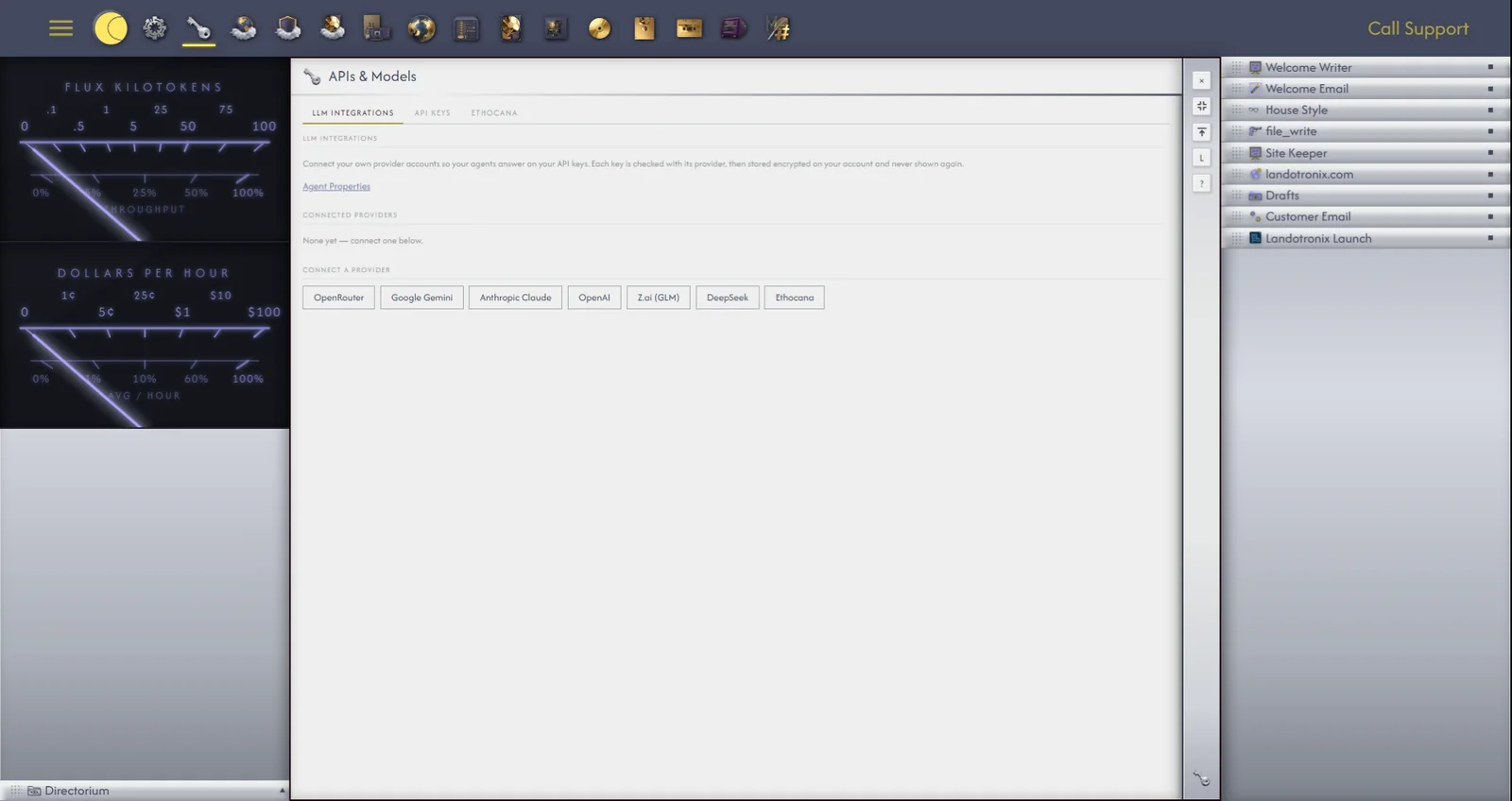
Gridtop connects to these providers:
Before you begin, sign in to the provider's website, create an API key there, and copy it. Most providers show a new key only once, so keep that page open until you have pasted it.
If the provider refuses the key, Gridtop says so, for example Claude rejected that key, with the provider's reason code. The usual causes are a key copied with a character missing, a key since deleted at the provider, or an account there with no credit left; create a fresh key and try again. Could not reach the server. means the connection between your computer and ours; wait a moment and try again.
Each connection shows the provider's name and a hint of the key, its first four and last four characters, so that you can tell your keys apart. One connection is marked DEFAULT.
For most providers you choose the model agent by agent, from the agent's chatbox (13.7). OpenRouter and Z.ai offer more models than a short menu can hold, so for them you choose the model once, on the connection, and every agent on that provider follows it.
OpenRouter. Beside the connection, the list shows the model in use, or default model. Click Choose model, narrow the list in Search models…, and click Use beside the one you want; Gridtop confirms Model set to and its name. Each model shows its price per million tokens read and written, or free; one marked no tool support can converse but cannot use Gridtop's tools.
Z.ai. Beside the connection, the list shows its plan and model, or no model yet. Click Plan & model, choose the Plan and the Model (click Refresh list, or type a model's name, such as glm-4.6, if it is not listed), then Use and Close.
Click Disconnect beside the connection. It is removed at once, without a further question, and Gridtop confirms Disconnected. The key is blanked on the server and cannot be used again from your Gridtop. Agents set to that provider do not stop working: they fall back to Ethocana until you connect the provider again or choose another.
Ethocana is the on-board AI that comes with your Gridtop. It needs no key and no account with anyone else, which is why every new agent starts on it. It runs under your Autocomputing account and is metered for fair use, so that everyone who shares it is served well.
Behind the name, Ethocana runs free models: openly available language models, offered at no charge through OpenRouter. You can leave the choice to Ethocana, which picks a suitable free model for each request, or choose one yourself. Free models vary a great deal; some read long documents, some are quick and brief, and some cannot use Gridtop's tools at all. For demanding work (long documents, careful reasoning, code, a Task with many steps), connect a provider (13.2) and move your agent to it.
To choose Ethocana's model, open APIs & Models ▸ Ethocana. Under Model, the first row is OpenRouter Free (automatic), which picks a free model for each request. Leave it in use, or search the list with Search free models… and click Use beside a model; In use: shows your choice. Each model shows its context window, such as 128k context, and is marked open weights or no tools where that applies; tick Tools or Open weights to list only those.
The Ethocana chat. Ethocana also has a chat of its own, outside Gridtop, at model.ethocana.ai, for which your Autocomputing account is your identity. On the Ethocana tab, under Connection, click Link Ethocana account (or Enable Ethocana, where it is not yet switched on). With two-factor sign-in, type your Authenticator code and click Connect Ethocana. Gridtop confirms Ethocana account linked., and Status reads On · account linked. Then sign in at auth.ethocana.ai with the same account, and open the chat at model.ethocana.ai. Unlink Ethocana account reverses it; your agents go on using Ethocana as before.
When you click Verify & Connect, your key travels once, over an encrypted connection, to the working half of your Gridtop in your own hosting account (2.7). There it is checked with the provider, encrypted, and stored, and from then on it is never sent back to your browser or to anyone else. What you see in Connected providers is only a short hint of it.
Keys are kept on the server, not in your browser, so that your agents keep working when you are not there: a scheduled agent (chapter 20) or a long reply that continues after you close the tab (19.2) runs without a browser, and needs your key to do so.
Rarely, a stored key becomes unreadable because the lock it was sealed with has changed. Such a key is marked RECONNECT, and agents do not use it; an agent set to that provider is answered by Ethocana instead. Click Disconnect beside it, then connect the provider again with the same key.
You remain responsible for the keys themselves: what you connect, the charges your provider bills you, and cancelling a key at the provider when you no longer want it used (Our Responsibilities and Yours).
Each agent carries its own provider and model, so one agent can run on a large model for careful work while another runs on Ethocana for quick errands. The choice is made from the chips beneath the agent's chatbox (Figure GT-010), or from Provider and Model on the CONN tab of its descriptor panel.
The change applies from the agent's next reply. More effort gives better answers to hard questions, more slowly and at greater cost; for quick edits, less is better. An agent working in the Web Editor (27.7) thinks at its fastest level unless you have set its effort.
Every model has two limits that matter: how much it can read at once, its context window (your instructions, the conversation, attached files and everything Gridtop tells the agent must all fit inside it), and how much it can write in one reply. Gridtop learns both from the provider and sets the agent's Max Tokens and Context Window controls (chapter 14) to reach exactly what the model can do.
Two small meters sit beneath every chatbox, and in the Meters row of the agent's CONN tab:
The meters bring themselves up to date after every reply, and every thirty seconds between.
Click either meter for the agent's usage card, beside the chat; click the meters again, anywhere else, or press ESC to close it. The card gathers what the agent is spending:
The card is silver, like Gridtop's menus, and takes on a faint plum tint as one of these readings passes about nine-tenths: a good moment to start a fresh conversation, or to look at your limits.
