Every part of Gridtop has settings behind it, and a description of what it does. The Registry gathers them in one place, in the manner of the Windows Registry: a list of keys, one for each part of Gridtop, each holding its values. This chapter explains how to read it, where its values come from, and the few you can change.
Computer, in the app drawer, opens on its Registry tab: Its Registry lists every part of the Gridtop: what it does, its functions and its values. At the left is a searchable list of keys, named like the Windows Registry's, for example Gridtop\Meters or Gridtop\Updates. Choose one, and the right side shows what that part of Gridtop is and does, its Values, and the features it provides.
For most of Gridtop, the Registry is a reference: an exact, always-current description of each part, for the curious and for those who support you. A value there tells you how the part is set; it does not ask you to change it.
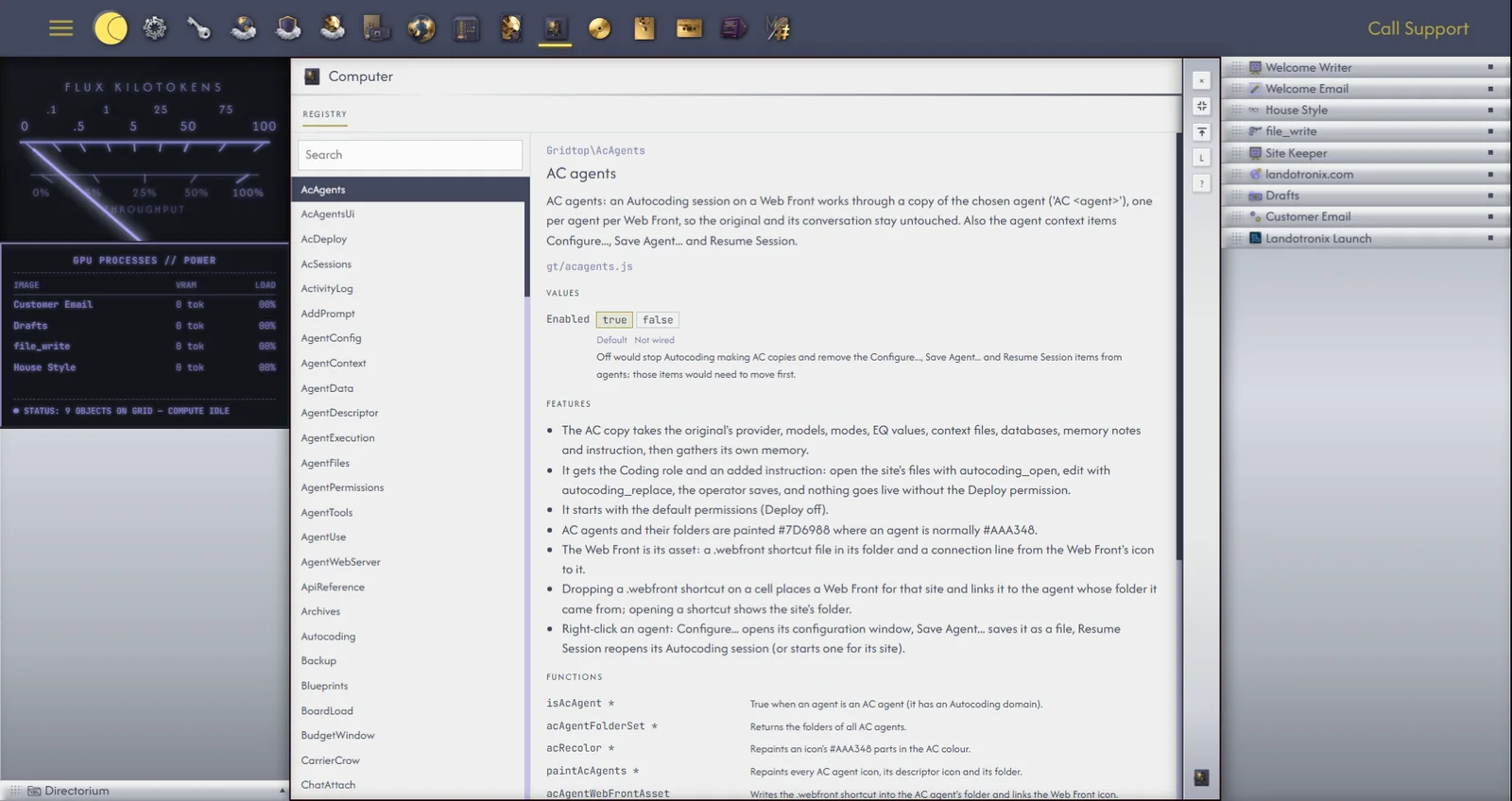
Each value carries a small label saying who set it: Autocomputing (set by us, for every Gridtop), Plan (for everyone on your plan), Account (set by you, for your account) or Default (nobody has set it, so it has its built-in value). Where more than one has a say, your Account setting is in force, unless a setting above it is locked (33.3).
A value marked with a red Locked is fixed by Autocomputing and cannot be changed from an account. We lock a value only where it protects your Gridtop or your data, as with automatic updates for Autocomputing '26 (chapter 41).
A value you can change shows its choices as buttons. Click one, and Gridtop confirms Saved. Applies next load.: the change takes effect the next time your Gridtop opens. Reset returns a value you have changed to its default. In 1.0-beta only a few values can be changed this way; more will follow.
